> ## Documentation Index
> Fetch the complete documentation index at: https://docs.osvi.ai/llms.txt
> Use this file to discover all available pages before exploring further.
# Starting a Build
> Describe a new agent, reference an existing one, attach files, and work with Conductor on the draft
Start a build from **Agents → Build with Conductor** (next to **New agent**). To edit an agent you already have, see [Refining an Agent](/platform/conductor-refine).
## The build form
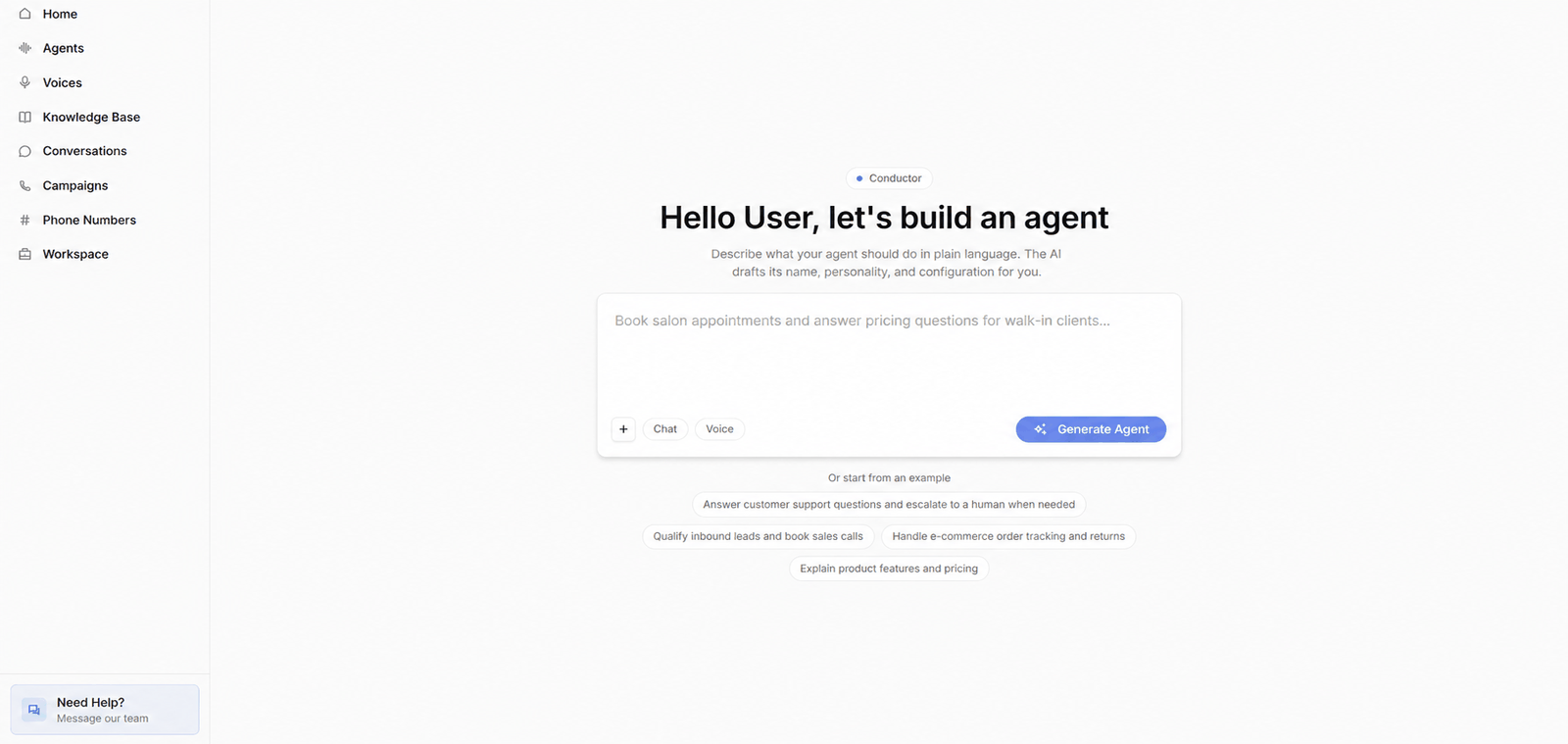
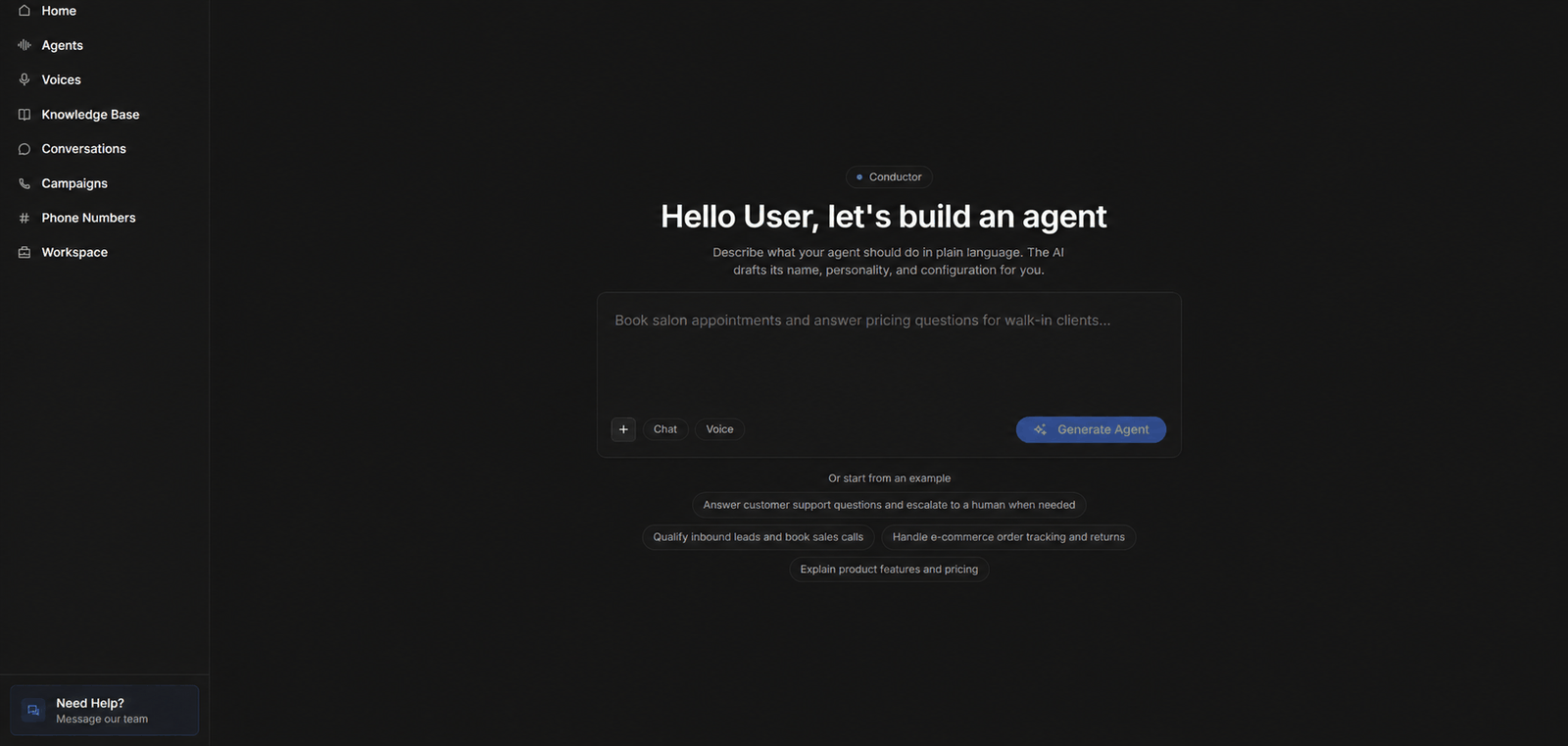
A new build starts with a short form:
 | Field | What it does |
| ---------------- | -------------------------------------------------------------------------------------------------------------------------------------------- |
| **Description** | Required. What the agent should do, in plain language. Press Enter to generate, Shift+Enter for a new line. |
| **Chat / Voice** | Optional. The channel for the agent. If you skip it, Conductor asks during the conversation. |
| **Direction** | Voice only, optional. **Inbound** or **Outbound**, so the draft fits who starts the call. |
| **+ menu** | **Attach files** for context, **Reference an agent** to start from an existing agent's settings, or **Refine an agent** to edit one instead. |
Click **Generate Agent**, or pick one of the examples under **Or start from an example** to prefill the description.
A good description names the business, the caller or customer, the goal, and when to hand off. "Qualify inbound leads for a solar installer, collect roof type and monthly bill, and book a site visit" gives Conductor far more to work with than "sales agent".
## Referencing an agent
| Field | What it does |
| ---------------- | -------------------------------------------------------------------------------------------------------------------------------------------- |
| **Description** | Required. What the agent should do, in plain language. Press Enter to generate, Shift+Enter for a new line. |
| **Chat / Voice** | Optional. The channel for the agent. If you skip it, Conductor asks during the conversation. |
| **Direction** | Voice only, optional. **Inbound** or **Outbound**, so the draft fits who starts the call. |
| **+ menu** | **Attach files** for context, **Reference an agent** to start from an existing agent's settings, or **Refine an agent** to edit one instead. |
Click **Generate Agent**, or pick one of the examples under **Or start from an example** to prefill the description.
A good description names the business, the caller or customer, the goal, and when to hand off. "Qualify inbound leads for a solar installer, collect roof type and monthly bill, and book a site visit" gives Conductor far more to work with than "sales agent".
## Referencing an agent
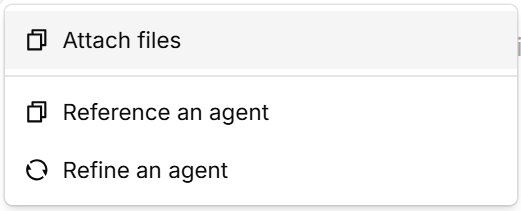
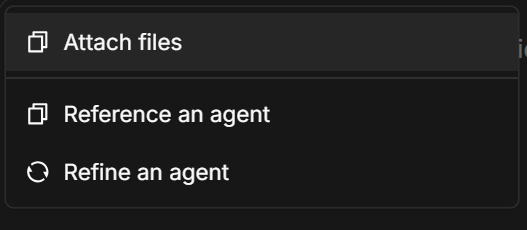 Referencing lets you base a new agent on one you already have. Pick it from **+ → Reference an agent**, and the form shows **Referencing:** with the agent's name (click × to clear it). Conductor copies the reference's settings — model, voice, behaviour, and so on — but writes a fresh name, system prompt, and first message from your description. Custom tools and transfers from the reference arrive as [review cards](/platform/conductor-create#reviewing-changes) instead of being copied silently.
You can also reference an agent from the other channel, such as a voice agent when building a chat agent: settings that don't apply are dropped, and Conductor walks you through adapting the rest before you can create the agent. The reference agent must have a system prompt and can't be archived.
## Attaching files
Attach documents that describe your business — an FAQ, a pricing sheet, a call script — and Conductor uses them as context while drafting.
* **PDF, Markdown, TXT, or CSV** (Word documents are not supported).
* Up to **5 files** per message, **10 MB** each.
Files attached in Conductor are **not** added to your [knowledge base](/platform/knowledge-base), and the agent can't search them after it's created. To give the agent a document it can look things up in, upload it to the knowledge base first — Conductor can attach existing knowledge base documents to the agent.
## Working with Conductor
After you click **Generate Agent**, the build page opens: the conversation with Conductor on the left and a live **Preview** of the draft agent on the right.
Referencing lets you base a new agent on one you already have. Pick it from **+ → Reference an agent**, and the form shows **Referencing:** with the agent's name (click × to clear it). Conductor copies the reference's settings — model, voice, behaviour, and so on — but writes a fresh name, system prompt, and first message from your description. Custom tools and transfers from the reference arrive as [review cards](/platform/conductor-create#reviewing-changes) instead of being copied silently.
You can also reference an agent from the other channel, such as a voice agent when building a chat agent: settings that don't apply are dropped, and Conductor walks you through adapting the rest before you can create the agent. The reference agent must have a system prompt and can't be archived.
## Attaching files
Attach documents that describe your business — an FAQ, a pricing sheet, a call script — and Conductor uses them as context while drafting.
* **PDF, Markdown, TXT, or CSV** (Word documents are not supported).
* Up to **5 files** per message, **10 MB** each.
Files attached in Conductor are **not** added to your [knowledge base](/platform/knowledge-base), and the agent can't search them after it's created. To give the agent a document it can look things up in, upload it to the knowledge base first — Conductor can attach existing knowledge base documents to the agent.
## Working with Conductor
After you click **Generate Agent**, the build page opens: the conversation with Conductor on the left and a live **Preview** of the draft agent on the right.
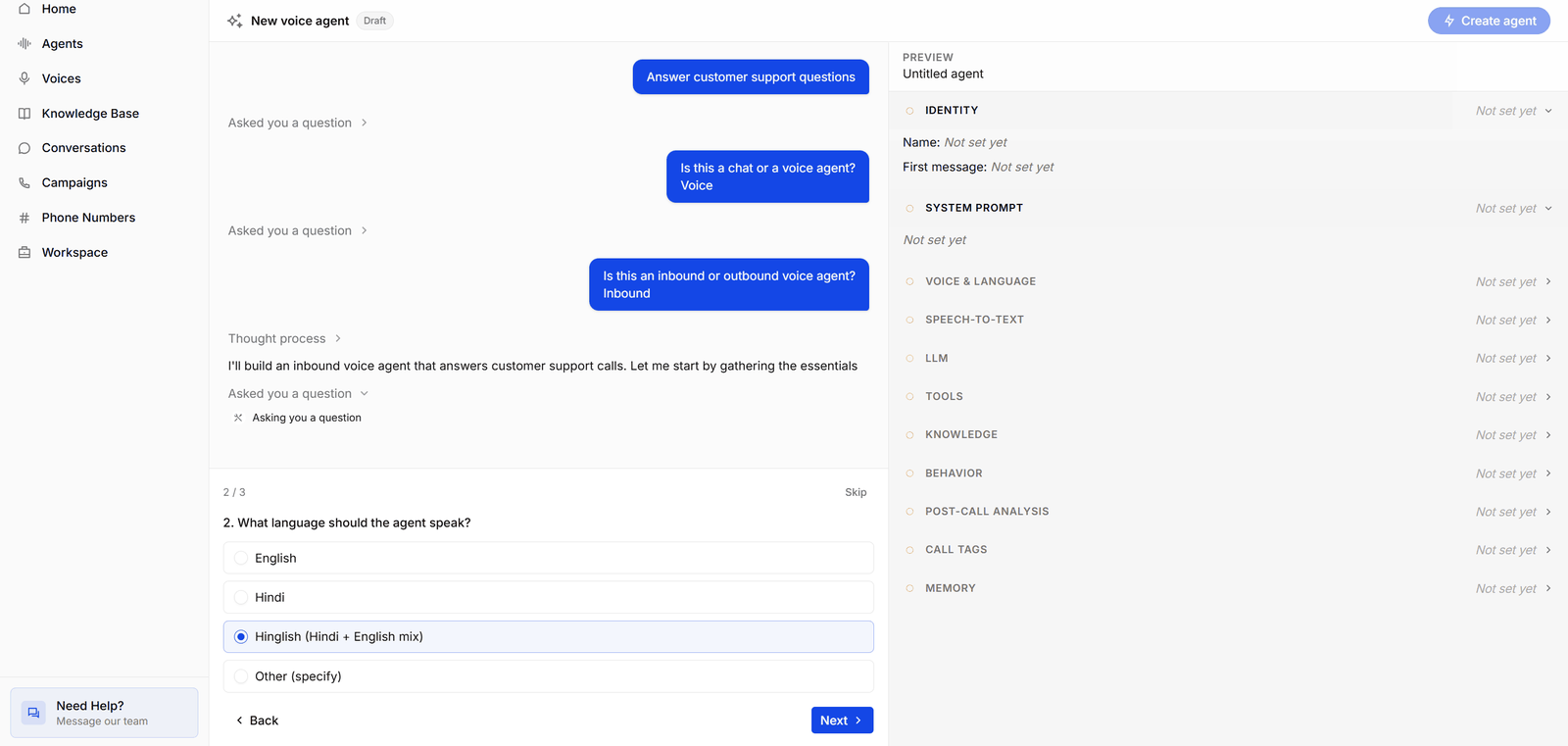
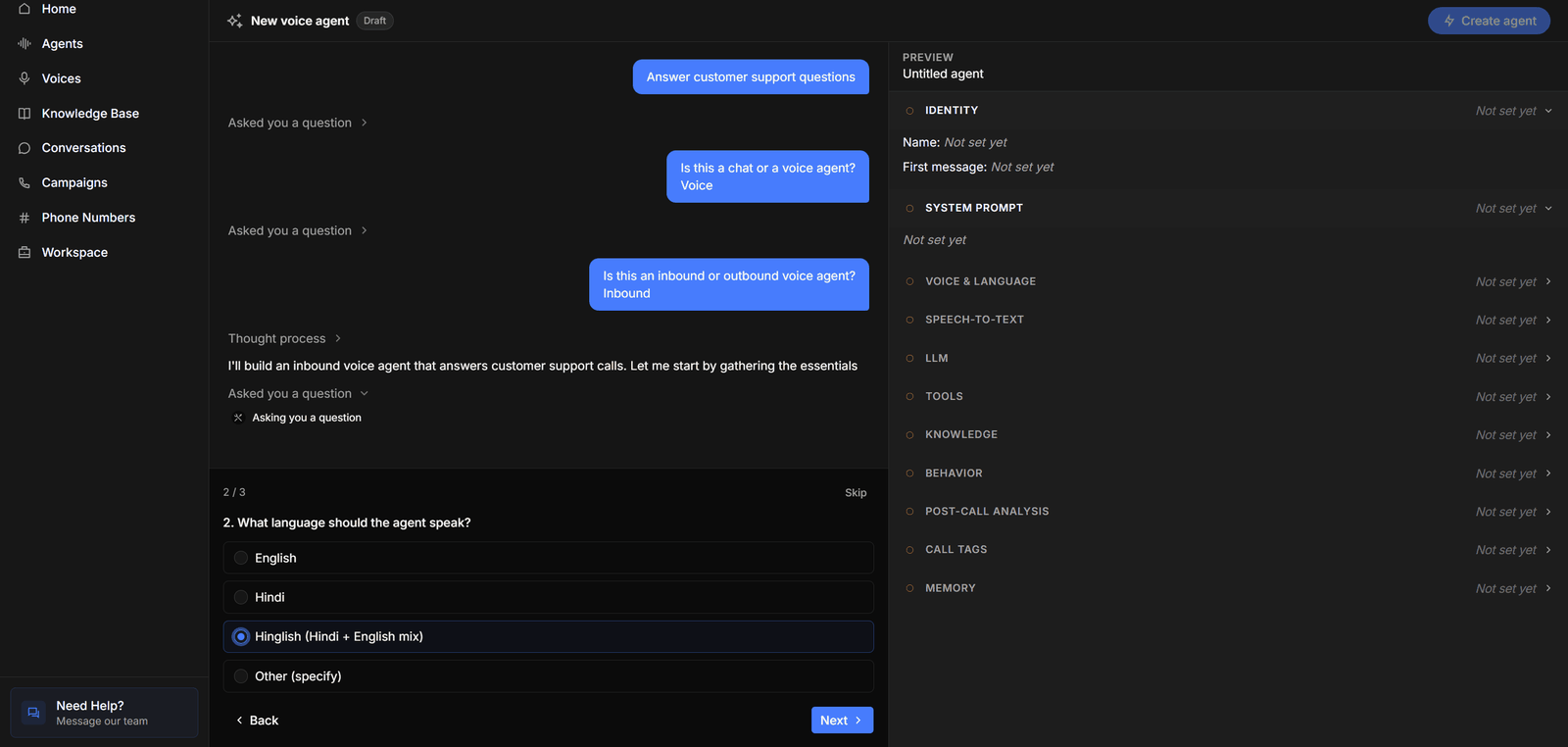 * **The header** shows the agent's name — **New voice agent** or **New chat agent** until Conductor names it — with a **Draft** badge, and the **Create agent** button, which stays disabled until the draft is ready.
* **The conversation** shows your messages and Conductor's replies. Conductor's steps are condensed into short activity lines such as *Asked you a question*, *Thought process*, or *Added 1 tool* — click one to expand the details.
* **Questions** replace the message box when Conductor needs details — above, it has already asked whether the agent is chat or voice and inbound or outbound, and is now asking which language to speak. Questions come one at a time (**2 / 3** shows your progress); pick an option, or choose **Other (specify)** to type your own answer, and move between them with **Back** and **Next**. You can review your answers before submitting, and questions you leave unanswered are sent without an answer. **Skip** skips the whole set.
* **The Preview** groups the draft into sections — Identity, System prompt (or Flow for multi-prompt agents), LLM, Tools, Knowledge, Behavior, and Memory, plus Voice & Language, Speech-to-text, Post-call analysis, and Call tags for voice agents. An amber circle and **Not set yet** mean a section hasn't been filled in; a green tick means Conductor has set it. Expand a section to see its values.
Once the basics are in place, keep going in plain language — "make the tone more formal", "add a transfer to our front desk", "switch to Hindi". Conductor applies each change to the draft and updates the Preview as it goes; you can stop it mid-response.
Your draft is saved on the server as you go. A build can only be open in one browser tab at a time — if you open it elsewhere, the first tab shows **This build is open in another tab** with a **Reconnect here** button.
When the draft is ready, [review and create the agent](/platform/conductor-create).
* **The header** shows the agent's name — **New voice agent** or **New chat agent** until Conductor names it — with a **Draft** badge, and the **Create agent** button, which stays disabled until the draft is ready.
* **The conversation** shows your messages and Conductor's replies. Conductor's steps are condensed into short activity lines such as *Asked you a question*, *Thought process*, or *Added 1 tool* — click one to expand the details.
* **Questions** replace the message box when Conductor needs details — above, it has already asked whether the agent is chat or voice and inbound or outbound, and is now asking which language to speak. Questions come one at a time (**2 / 3** shows your progress); pick an option, or choose **Other (specify)** to type your own answer, and move between them with **Back** and **Next**. You can review your answers before submitting, and questions you leave unanswered are sent without an answer. **Skip** skips the whole set.
* **The Preview** groups the draft into sections — Identity, System prompt (or Flow for multi-prompt agents), LLM, Tools, Knowledge, Behavior, and Memory, plus Voice & Language, Speech-to-text, Post-call analysis, and Call tags for voice agents. An amber circle and **Not set yet** mean a section hasn't been filled in; a green tick means Conductor has set it. Expand a section to see its values.
Once the basics are in place, keep going in plain language — "make the tone more formal", "add a transfer to our front desk", "switch to Hindi". Conductor applies each change to the draft and updates the Preview as it goes; you can stop it mid-response.
Your draft is saved on the server as you go. A build can only be open in one browser tab at a time — if you open it elsewhere, the first tab shows **This build is open in another tab** with a **Reconnect here** button.
When the draft is ready, [review and create the agent](/platform/conductor-create).