> ## Documentation Index
> Fetch the complete documentation index at: https://docs.osvi.ai/llms.txt
> Use this file to discover all available pages before exploring further.
# Tools Overview
> Give a voice agent actions it can take mid-call — built-in system tools and your own custom tools
Tools are actions a voice agent can take during a call: hanging up, transferring to a person, searching your knowledge base, or calling your own API. The agent's AI decides **when** to use a tool based on the conversation and the tool's **description** — so a well-written description matters as much as the tool's settings.
Open an agent and go to the **Tools** tab.
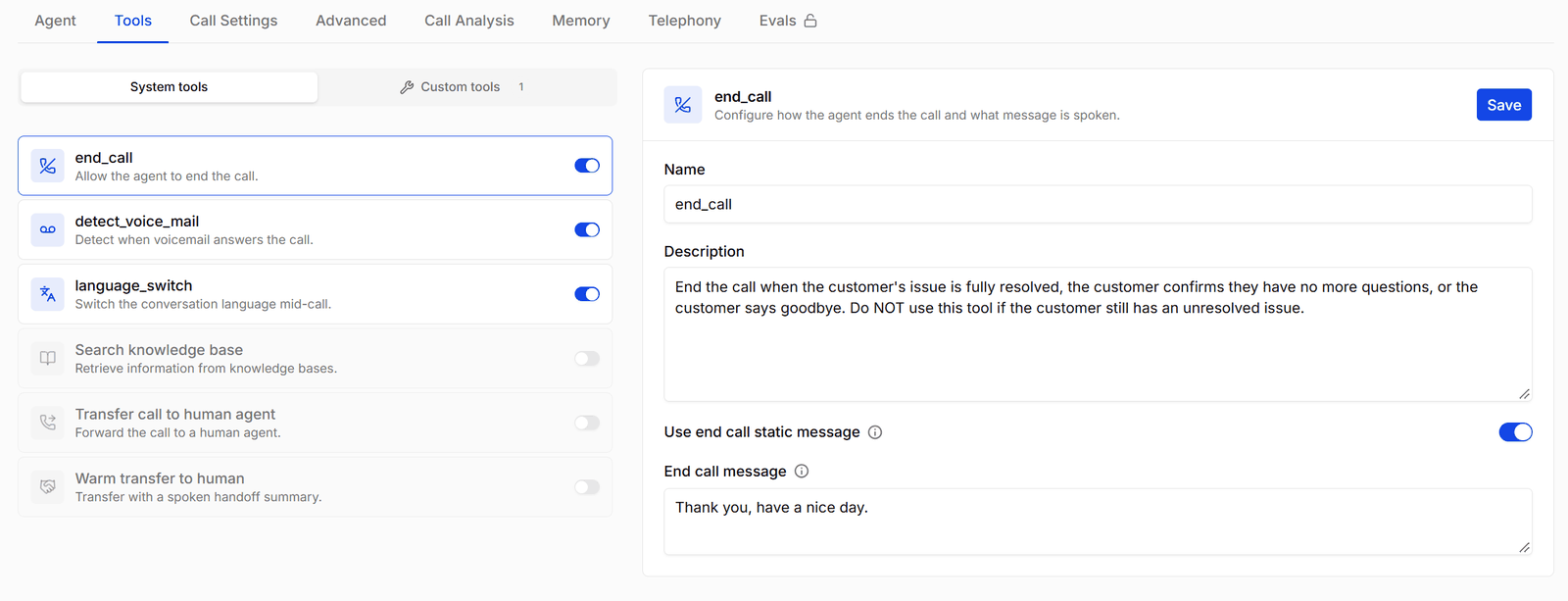
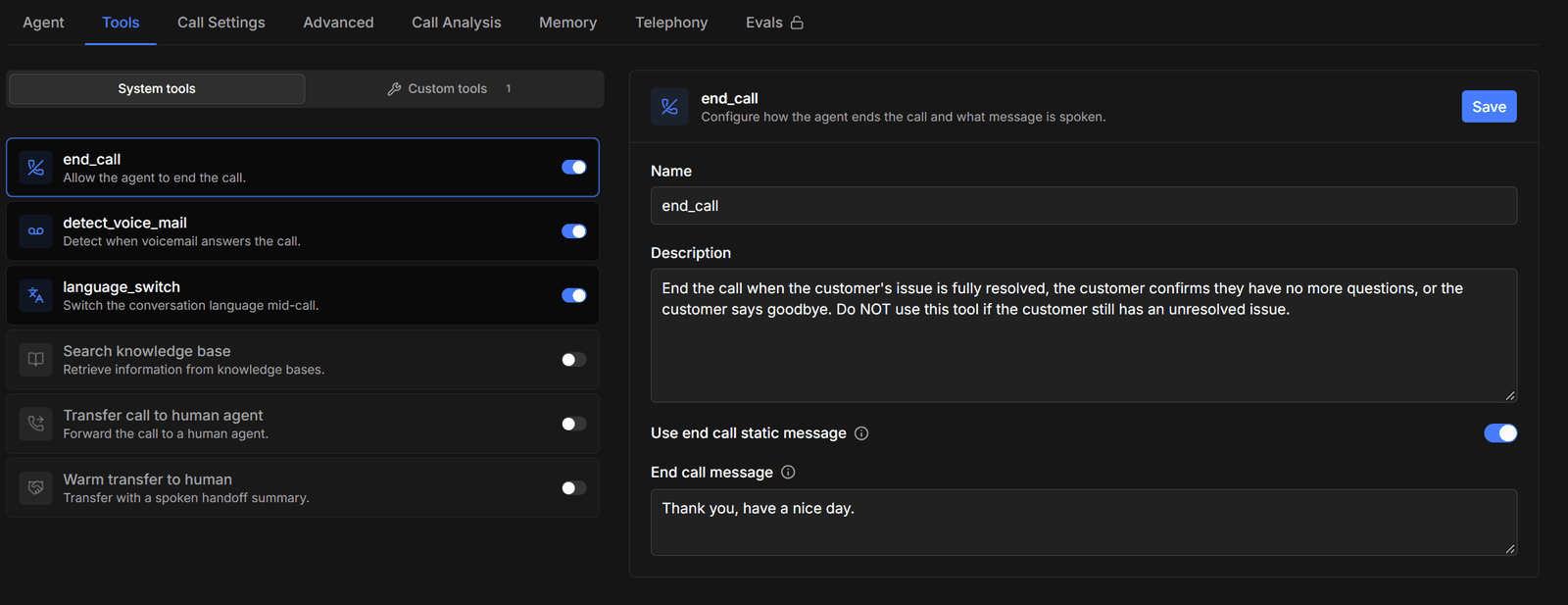 ## System tools and custom tools
The Tools tab has two lists:
| | System tools | Custom tools |
| ---------------------- | --------------------------------------------------------------------------------------- | ------------------------------------------------------------------------------------------ |
| **What they are** | Ready-made actions built into Osvi | Calls to your own HTTP endpoint |
| **Examples** | End call, transfer to a human, search the knowledge base | Check an order status, book an appointment, update your CRM |
| **How you add one** | Turn its switch on | Click **Add custom tool** |
| **How many** | One each — except transfers and knowledge base search, which you can add more than once | As many as you need |
| **What you configure** | A few settings per tool, such as the message spoken | The URL, method, headers, query parameters, payload, and the parameters the agent fills in |
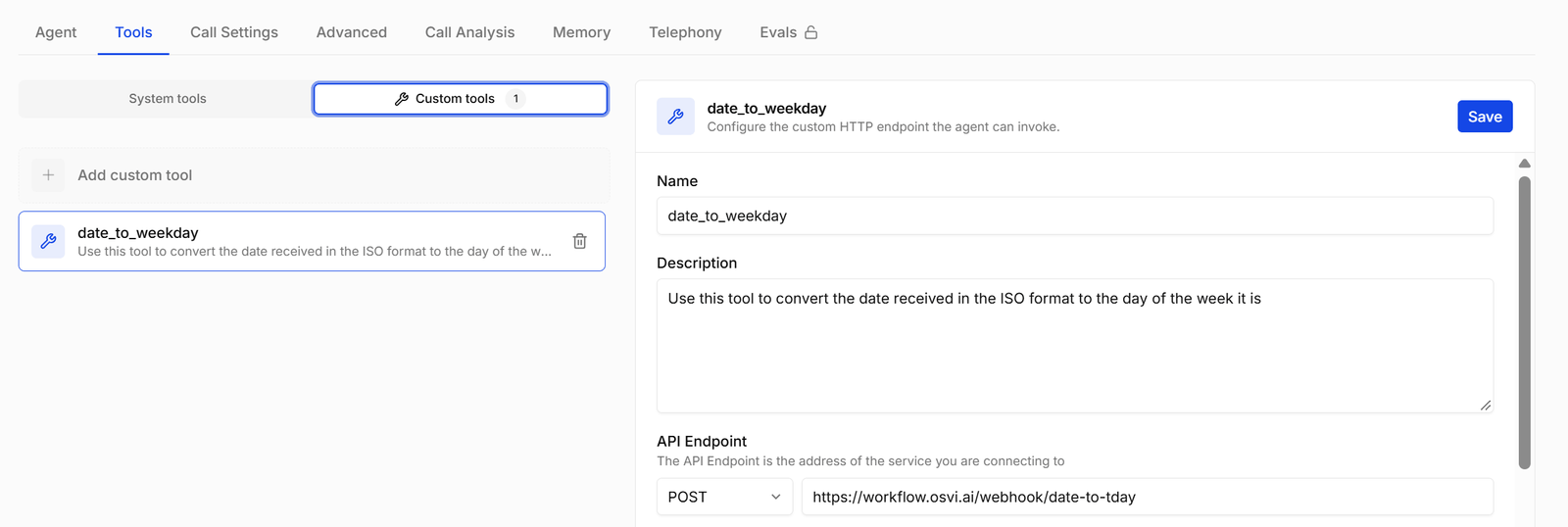
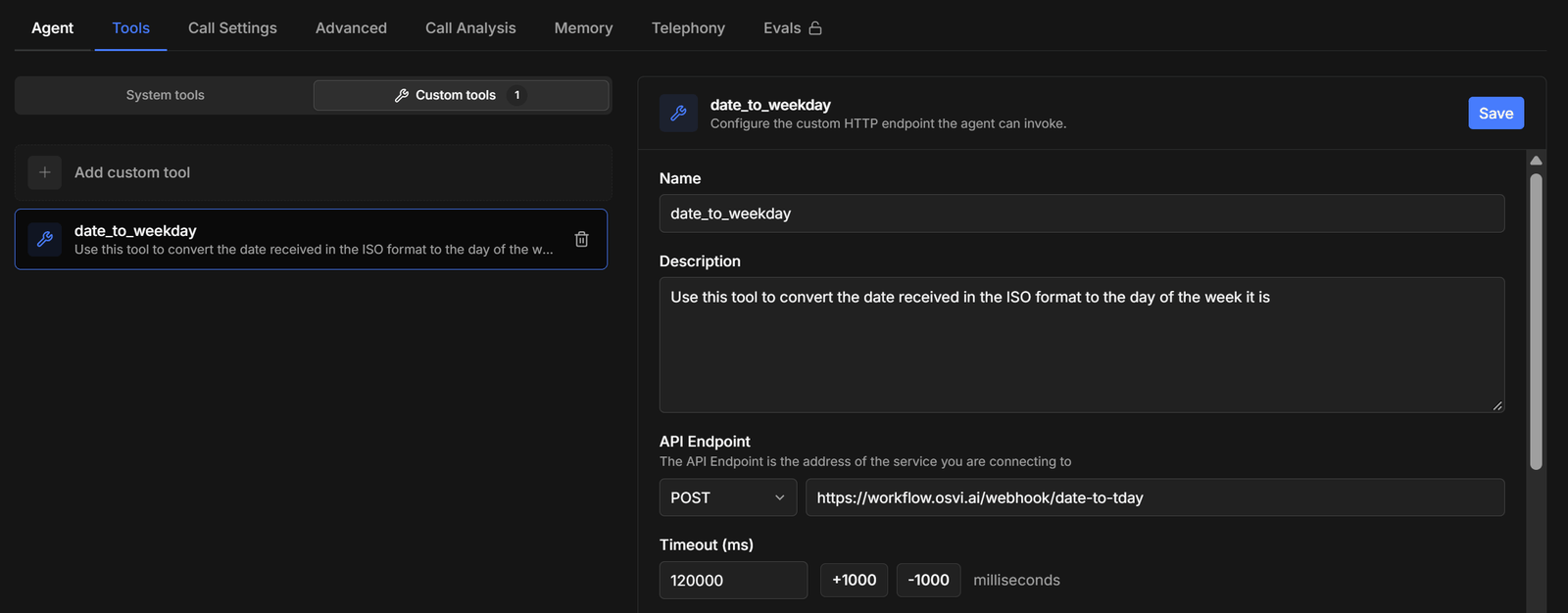
Switch between the two lists with the **System tools** and **Custom tools** tabs above the list. The Custom tools tab shows how many you have.
## System tools and custom tools
The Tools tab has two lists:
| | System tools | Custom tools |
| ---------------------- | --------------------------------------------------------------------------------------- | ------------------------------------------------------------------------------------------ |
| **What they are** | Ready-made actions built into Osvi | Calls to your own HTTP endpoint |
| **Examples** | End call, transfer to a human, search the knowledge base | Check an order status, book an appointment, update your CRM |
| **How you add one** | Turn its switch on | Click **Add custom tool** |
| **How many** | One each — except transfers and knowledge base search, which you can add more than once | As many as you need |
| **What you configure** | A few settings per tool, such as the message spoken | The URL, method, headers, query parameters, payload, and the parameters the agent fills in |
Switch between the two lists with the **System tools** and **Custom tools** tabs above the list. The Custom tools tab shows how many you have.
 * **[System Tools](/platform/tools-system)** — every built-in tool, what it does on a call, and its settings.
* **[Custom Tools](/platform/tools-custom)** — how to connect your own API and how requests are built.
## Writing tool descriptions
Every tool has a **Name** and a **Description**. The description is the only guidance the agent gets about the tool, so write it as an instruction:
* **When** to use the tool — "Use this when the caller asks for a real person."
* **What to say first**, if anything — "Tell the caller you're checking before calling this tool."
* **What not to do** — "Don't use this for billing questions."
System tools come with a default description you can edit. Spaces in a tool's name are turned into underscores as you type; give each tool a short, unique name.
## Adding, saving, and removing tools
* **Turn a system tool on** with its switch, or click **Add custom tool**. The tool is added to the agent **immediately** with its default settings.
* **Configure it** in the panel on the right and click **Save**.
* **Add another** instance of a transfer or knowledge base search with the **+** button on its card. Rename each instance so their names stay unique.
* **Turn a system tool off** with its switch. A **Disable tool** dialog asks you to confirm — its settings are lost.
* **Delete a custom tool** (or an extra instance) with the trash icon.
Tools go live the moment you add them, before you click **Save**. If the agent is active, finish configuring each new tool and save it before the agent takes calls.
## Tools on new agents
New voice agents start with **End call** and **Detect voicemail** turned on. [Search knowledge base](/platform/tools-system#search-knowledge-base) appears and disappears on its own as you attach and remove knowledge base documents.
## Multi-prompt agents
* **The Tools tab** sets **global tools**, available in every state of the conversation.
* **Per-state tools** are set in the **Agent** tab's workflow editor: select a state and use the tools section in its side panel. Save the workflow to keep the changes.
* **[System Tools](/platform/tools-system)** — every built-in tool, what it does on a call, and its settings.
* **[Custom Tools](/platform/tools-custom)** — how to connect your own API and how requests are built.
## Writing tool descriptions
Every tool has a **Name** and a **Description**. The description is the only guidance the agent gets about the tool, so write it as an instruction:
* **When** to use the tool — "Use this when the caller asks for a real person."
* **What to say first**, if anything — "Tell the caller you're checking before calling this tool."
* **What not to do** — "Don't use this for billing questions."
System tools come with a default description you can edit. Spaces in a tool's name are turned into underscores as you type; give each tool a short, unique name.
## Adding, saving, and removing tools
* **Turn a system tool on** with its switch, or click **Add custom tool**. The tool is added to the agent **immediately** with its default settings.
* **Configure it** in the panel on the right and click **Save**.
* **Add another** instance of a transfer or knowledge base search with the **+** button on its card. Rename each instance so their names stay unique.
* **Turn a system tool off** with its switch. A **Disable tool** dialog asks you to confirm — its settings are lost.
* **Delete a custom tool** (or an extra instance) with the trash icon.
Tools go live the moment you add them, before you click **Save**. If the agent is active, finish configuring each new tool and save it before the agent takes calls.
## Tools on new agents
New voice agents start with **End call** and **Detect voicemail** turned on. [Search knowledge base](/platform/tools-system#search-knowledge-base) appears and disappears on its own as you attach and remove knowledge base documents.
## Multi-prompt agents
* **The Tools tab** sets **global tools**, available in every state of the conversation.
* **Per-state tools** are set in the **Agent** tab's workflow editor: select a state and use the tools section in its side panel. Save the workflow to keep the changes.
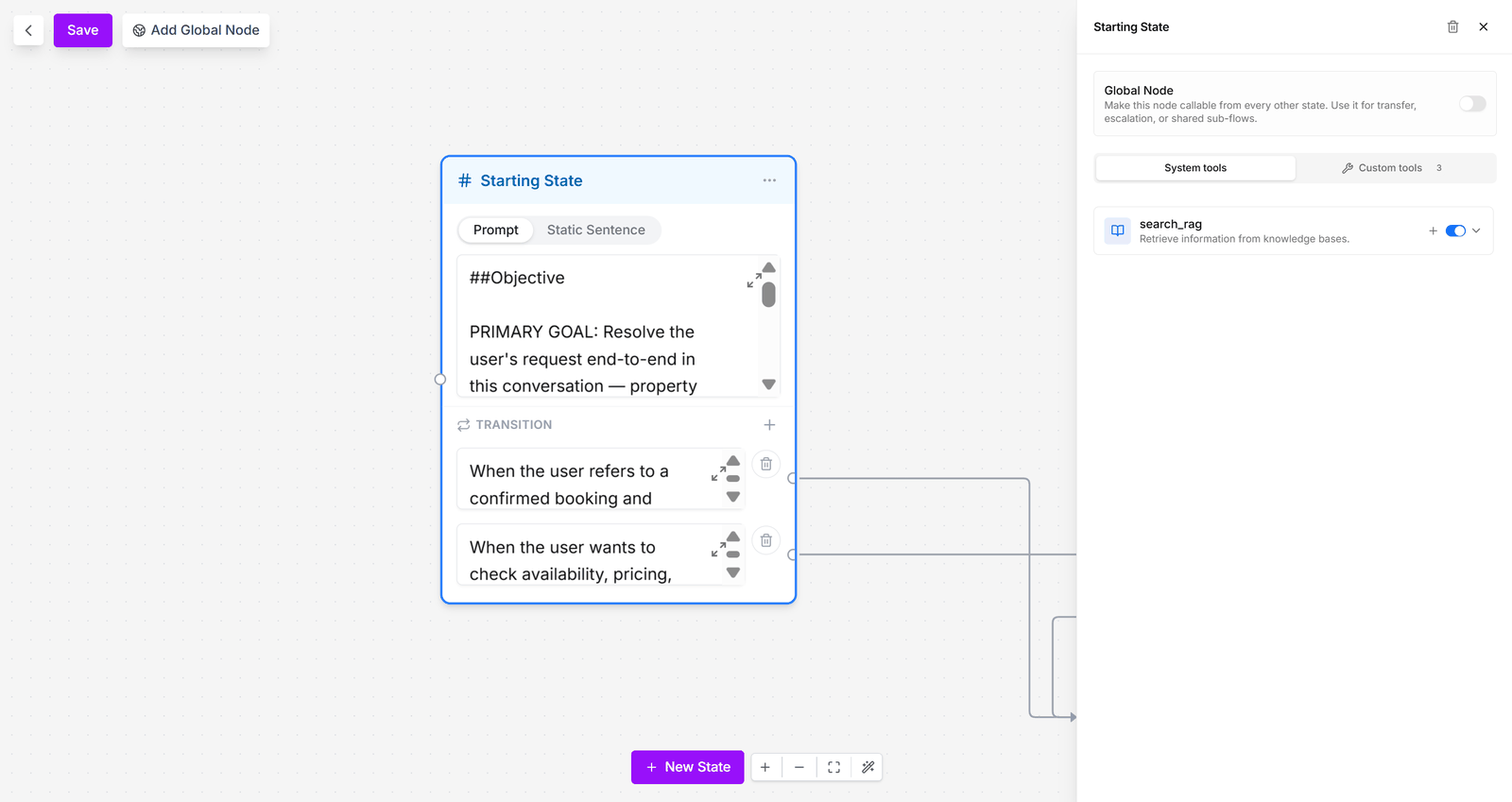
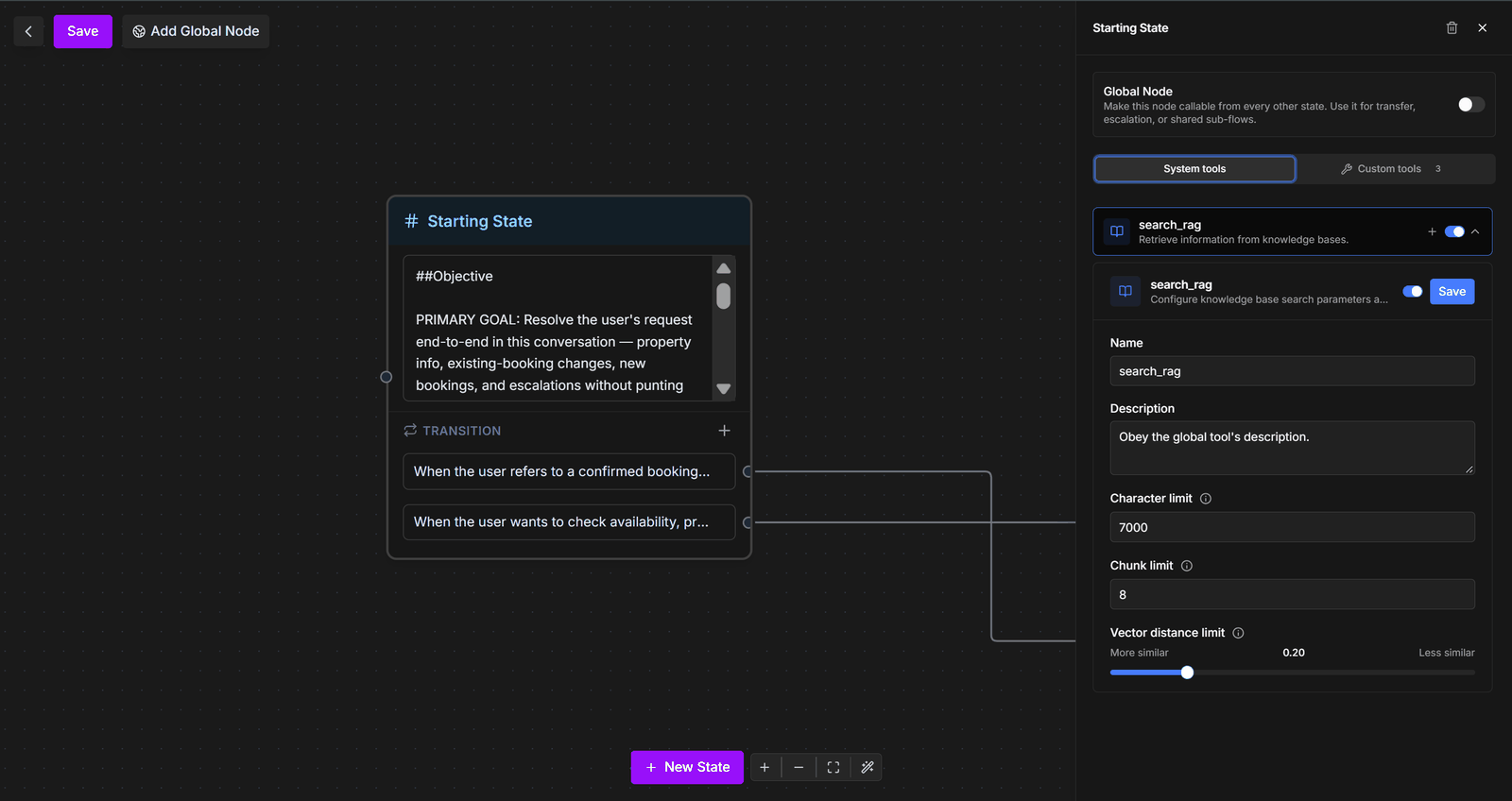 Selecting a state opens its side panel, with the same **System tools** and **Custom tools** lists as the Tools tab — above, *Search knowledge base* is on for the Starting State. The panel's **Global Node** switch makes the state callable from every other state, for shared sub-flows such as a transfer.
Static-sentence states can't have tools. Don't give a global tool and a state tool the same name.
## Voice and chat
| Tool | Voice agents | Chat agents |
| ---------------------------------------------------- | ------------ | ---------------------------------------------- |
| End call, Detect voicemail, Language switch | Yes | — |
| Transfer call to human agent, Warm transfer to human | Yes | — |
| Search knowledge base | Yes | Yes |
| Custom tools | Yes | Yes |
| Request human help, operator commands | — | Yes — see [Chat agents](/platform/chat-agents) |
Tools are configured in the dashboard (or with [Conductor](/platform/conductor)); they can't be set up through the API.
Selecting a state opens its side panel, with the same **System tools** and **Custom tools** lists as the Tools tab — above, *Search knowledge base* is on for the Starting State. The panel's **Global Node** switch makes the state callable from every other state, for shared sub-flows such as a transfer.
Static-sentence states can't have tools. Don't give a global tool and a state tool the same name.
## Voice and chat
| Tool | Voice agents | Chat agents |
| ---------------------------------------------------- | ------------ | ---------------------------------------------- |
| End call, Detect voicemail, Language switch | Yes | — |
| Transfer call to human agent, Warm transfer to human | Yes | — |
| Search knowledge base | Yes | Yes |
| Custom tools | Yes | Yes |
| Request human help, operator commands | — | Yes — see [Chat agents](/platform/chat-agents) |
Tools are configured in the dashboard (or with [Conductor](/platform/conductor)); they can't be set up through the API.