
End call
Lets the agent hang up when the conversation has reached a natural end. The agent finishes what it’s saying, speaks the closing message, and ends the call.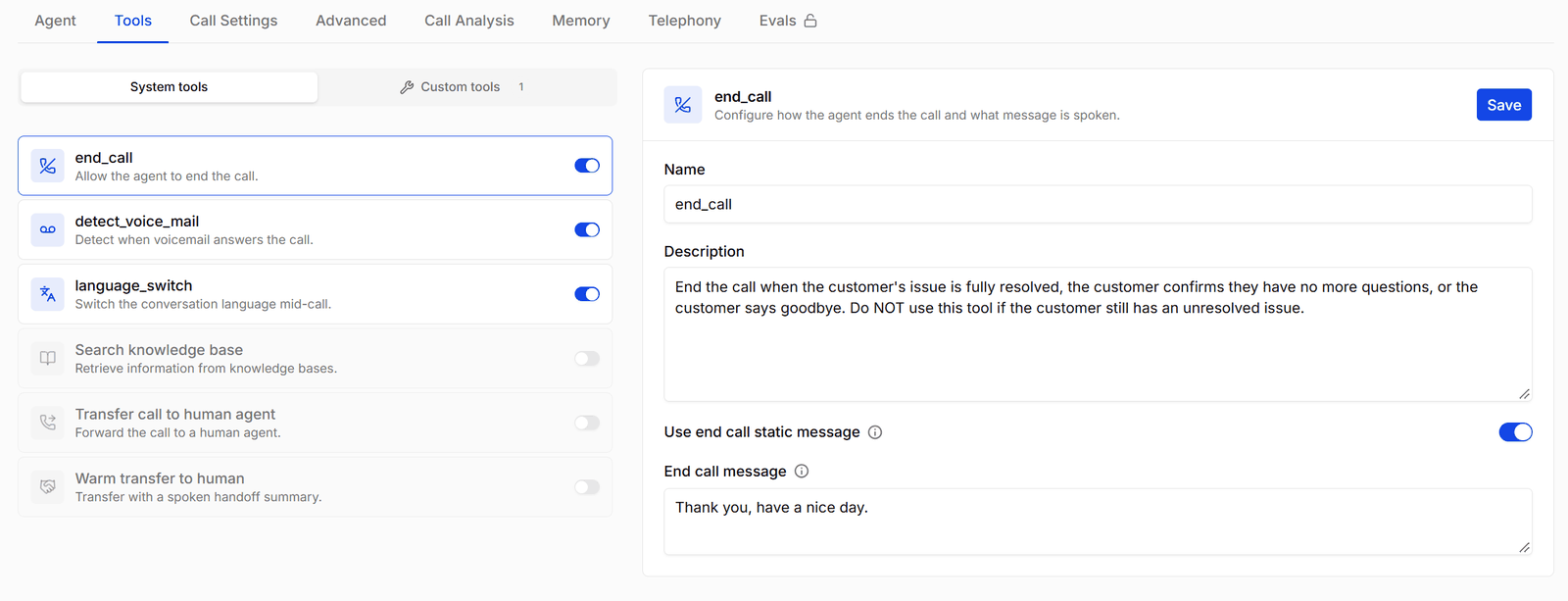
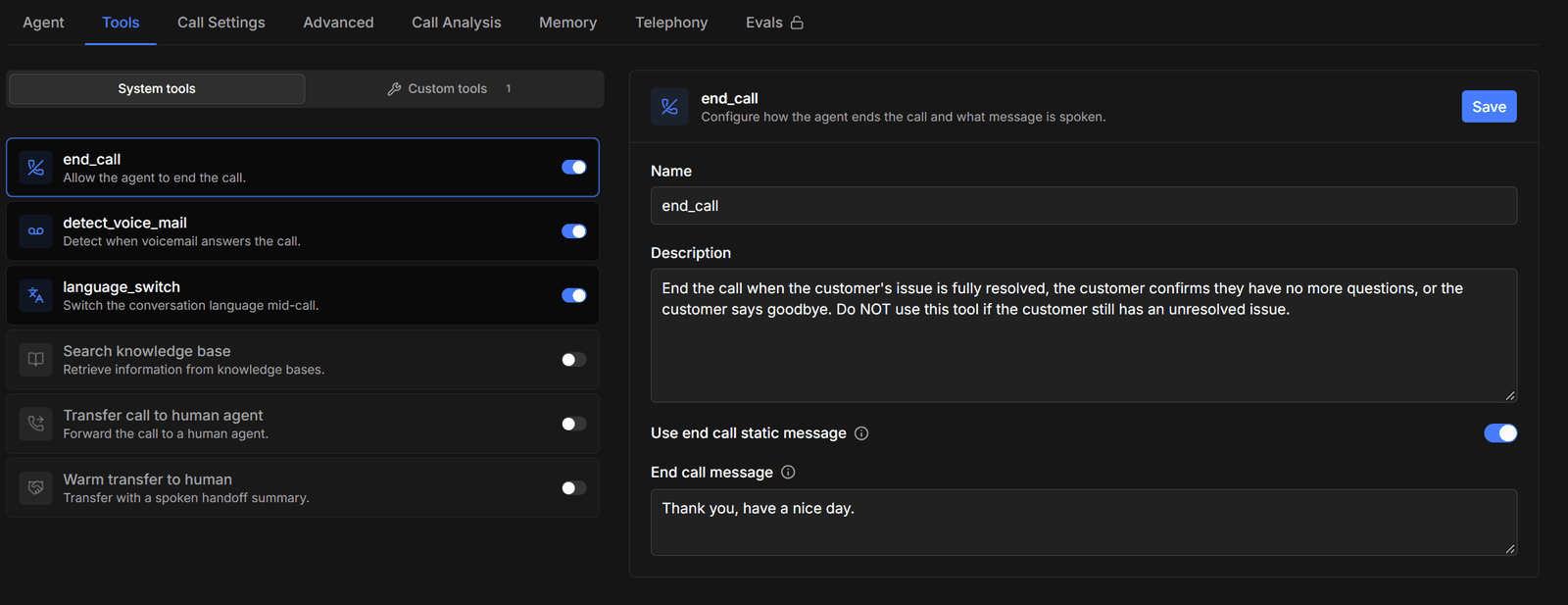
Detect voicemail
For outbound calls. When the agent recognises a voicemail greeting or an automated assistant, it hangs up and the call is marked as voicemail instead of using up minutes talking to a recording. Campaigns can then retry the contact later. The agent doesn’t leave a message. Detect voicemail has no settings besides its name and description — the default description lists typical voicemail greetings to help the agent recognise them.Language switch
Lets the agent change language when the caller asks — for example, from English to Hindi. The agent’s speech recognition and voice switch to the new language, keeping the same providers and voice. It can switch to any language the agent’s speech-to-text and text-to-speech providers support. If they don’t support the one the caller asks for, the agent tells them it can’t switch. Language switch has no settings besides its name and description.Switching language doesn’t change the system prompt. If the agent should reply in the caller’s language after switching, say so in the prompt.
Search knowledge base
Lets the agent look up answers in the knowledge base documents attached to it. This tool is added automatically when you attach documents. When the agent searches, it first says a short filler line so the caller isn’t left in silence, then answers from what it finds. If nothing relevant turns up, it says so.
You can add more than one knowledge base search — for example, with different limits — using the + button on the card.
Transfer call to human agent
Hands the caller to a person when they ask for one or the question is beyond the agent. The agent speaks a transfer message, the caller hears hold music, and the call is connected to the number you set. The agent then leaves the conversation.
Requirements
- SIP transfers go out through the agent’s outbound SIP trunk, so the agent needs one set up — see Phone numbers.
- WS Transfer mode is for Exotel Voicebot calls. Your Exotel flow must be Voicebot → Passthru → Connect. The phone number is optional in this mode — leave it blank to use the number configured in Exotel’s Connect applet. See the Exotel guide.
Warm transfer to human
Like a transfer, but the person you’re connecting to is briefed first. The caller is put on hold while Osvi calls the person and an AI assistant summarises the conversation so far. The person can then accept the call — and is connected to the caller — or decline it. If the person declines, doesn’t answer, or the call reaches their voicemail, the caller is taken off hold and the agent apologises and continues. Warm transfer has the same settings as Transfer call to human agent, plus:
Requirements: a SIP call and an outbound SIP trunk. With WS Transfer mode on, warm transfer works like a regular transfer, without the briefing.