
System tools and custom tools
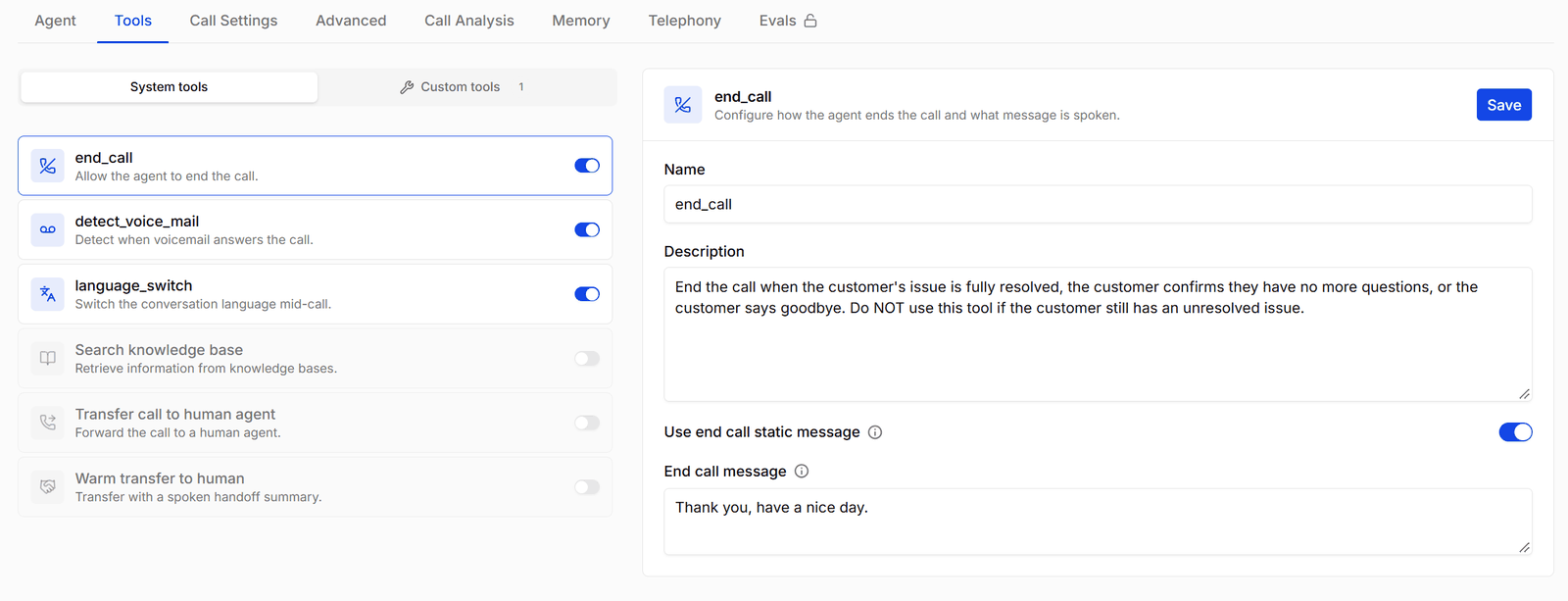
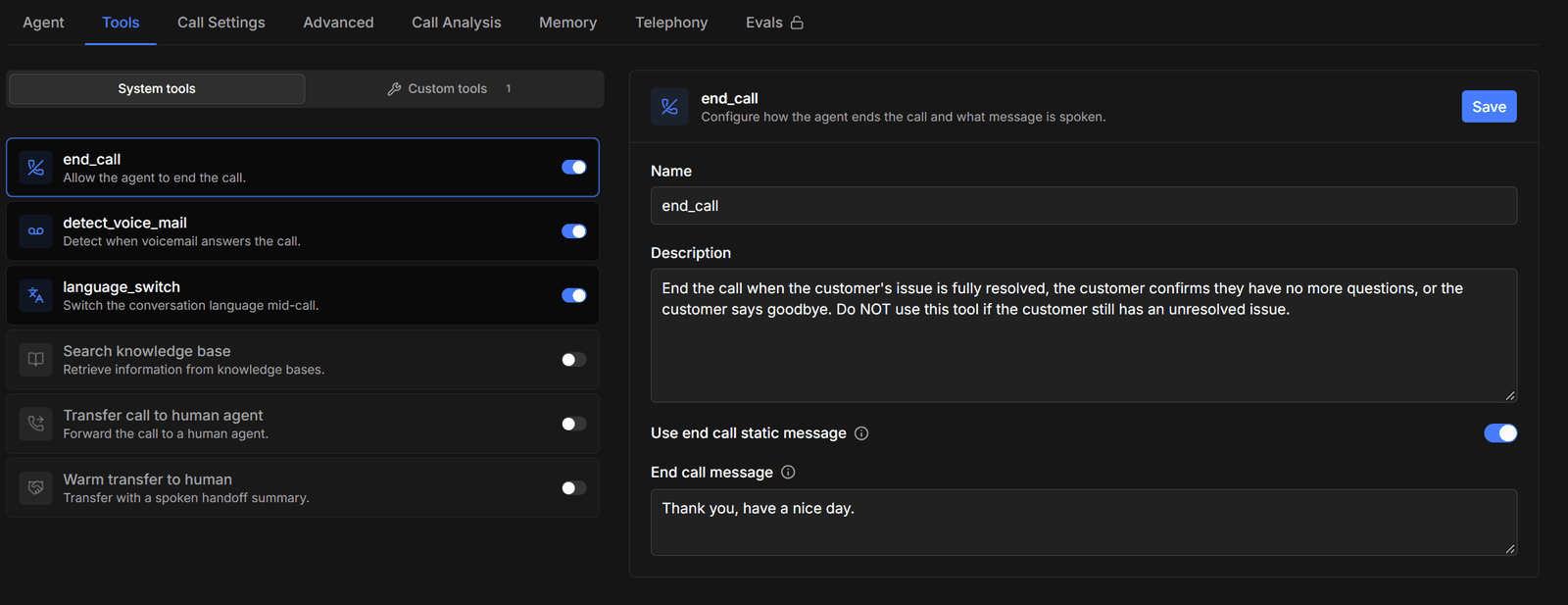
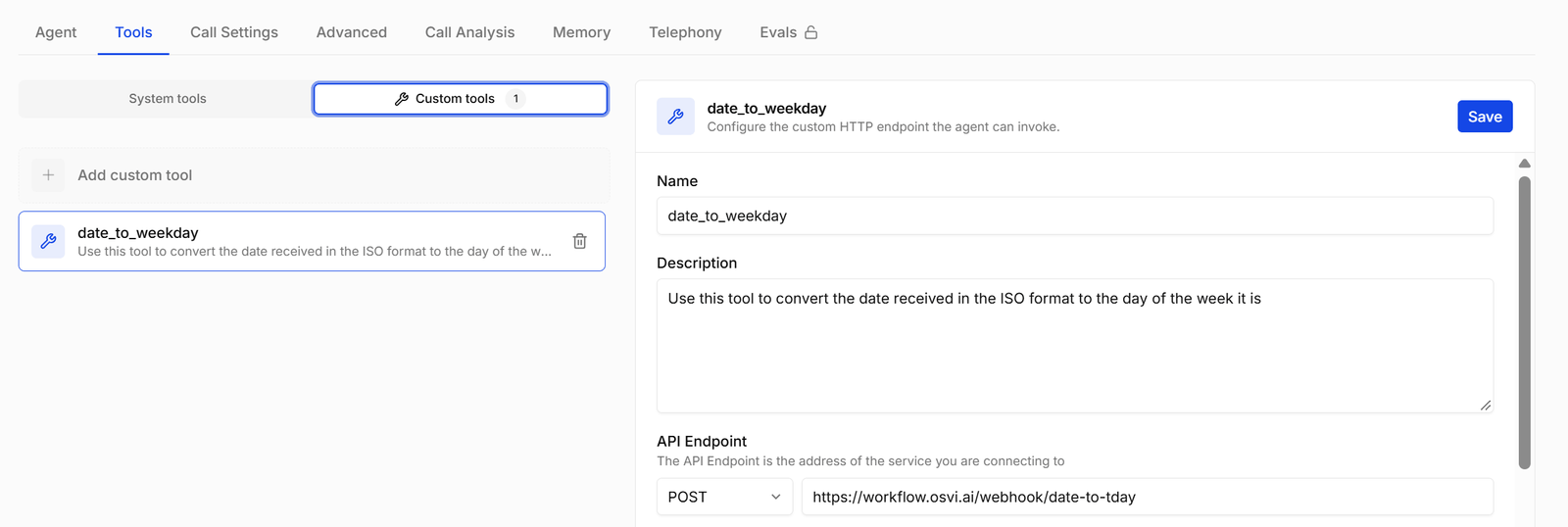
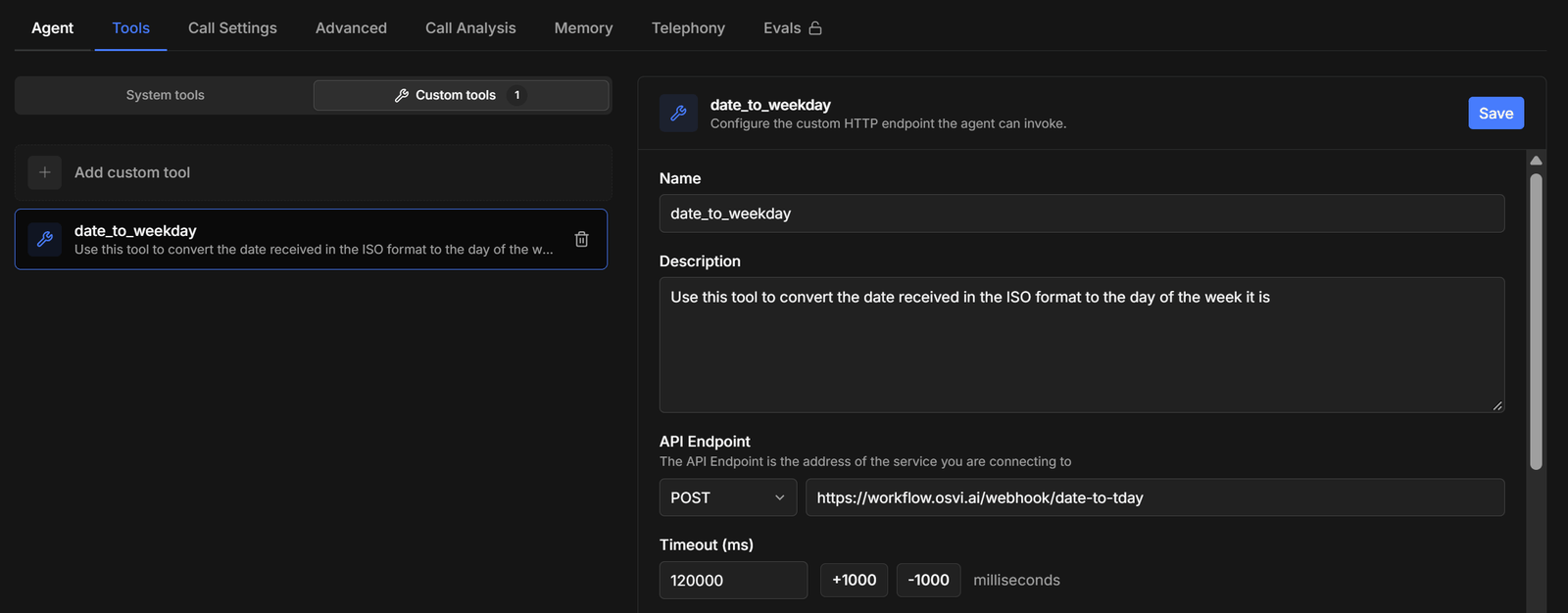
The Tools tab has two lists:
Switch between the two lists with the System tools and Custom tools tabs above the list. The Custom tools tab shows how many you have.
- System Tools — every built-in tool, what it does on a call, and its settings.
- Custom Tools — how to connect your own API and how requests are built.
Writing tool descriptions
Every tool has a Name and a Description. The description is the only guidance the agent gets about the tool, so write it as an instruction:- When to use the tool — “Use this when the caller asks for a real person.”
- What to say first, if anything — “Tell the caller you’re checking before calling this tool.”
- What not to do — “Don’t use this for billing questions.”
Adding, saving, and removing tools
- Turn a system tool on with its switch, or click Add custom tool. The tool is added to the agent immediately with its default settings.
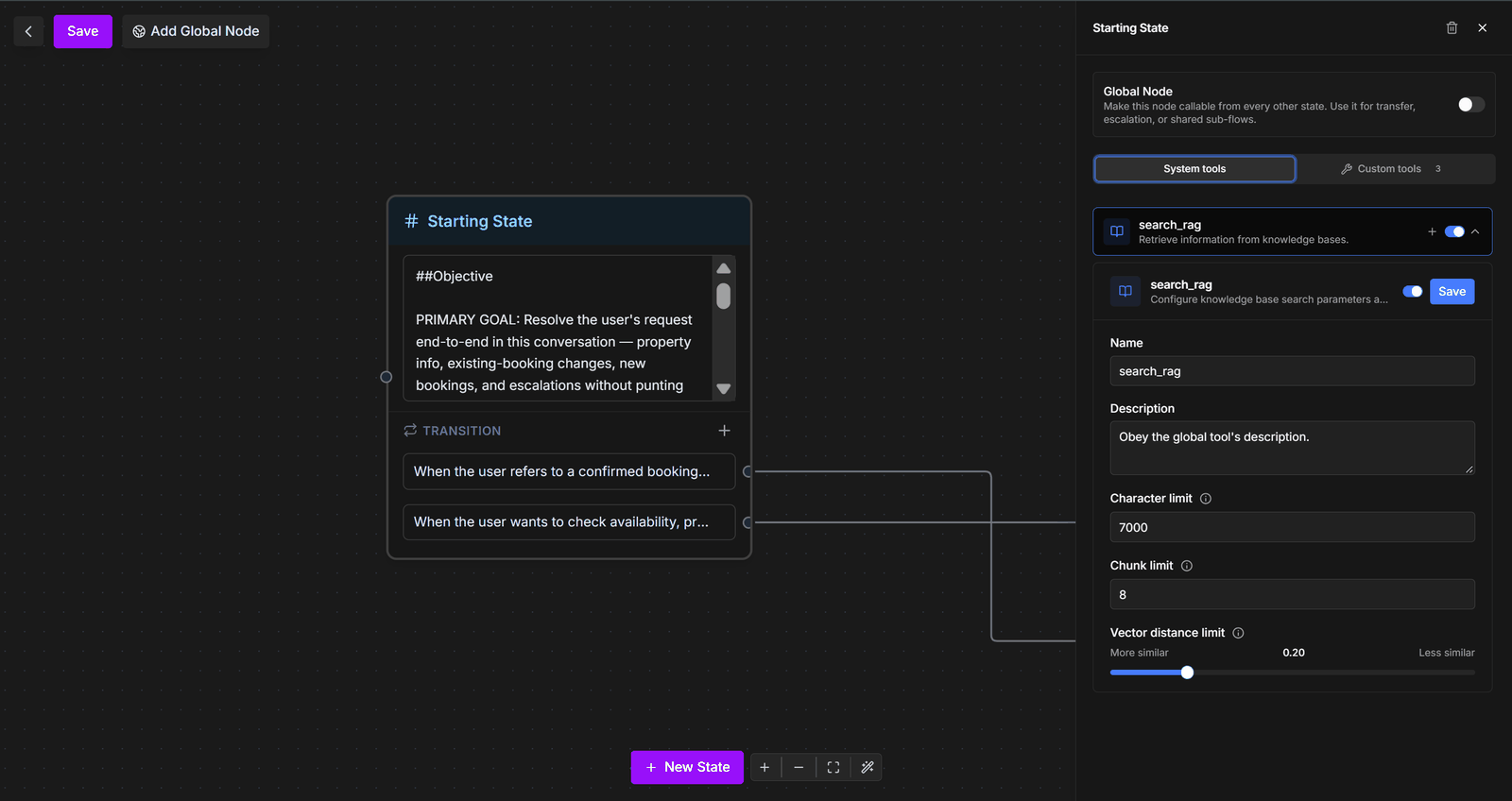
- Configure it in the panel on the right and click Save.
- Add another instance of a transfer or knowledge base search with the + button on its card. Rename each instance so their names stay unique.
- Turn a system tool off with its switch. A Disable tool dialog asks you to confirm — its settings are lost.
- Delete a custom tool (or an extra instance) with the trash icon.
Tools on new agents
New voice agents start with End call and Detect voicemail turned on. Search knowledge base appears and disappears on its own as you attach and remove knowledge base documents.Multi-prompt agents
- The Tools tab sets global tools, available in every state of the conversation.
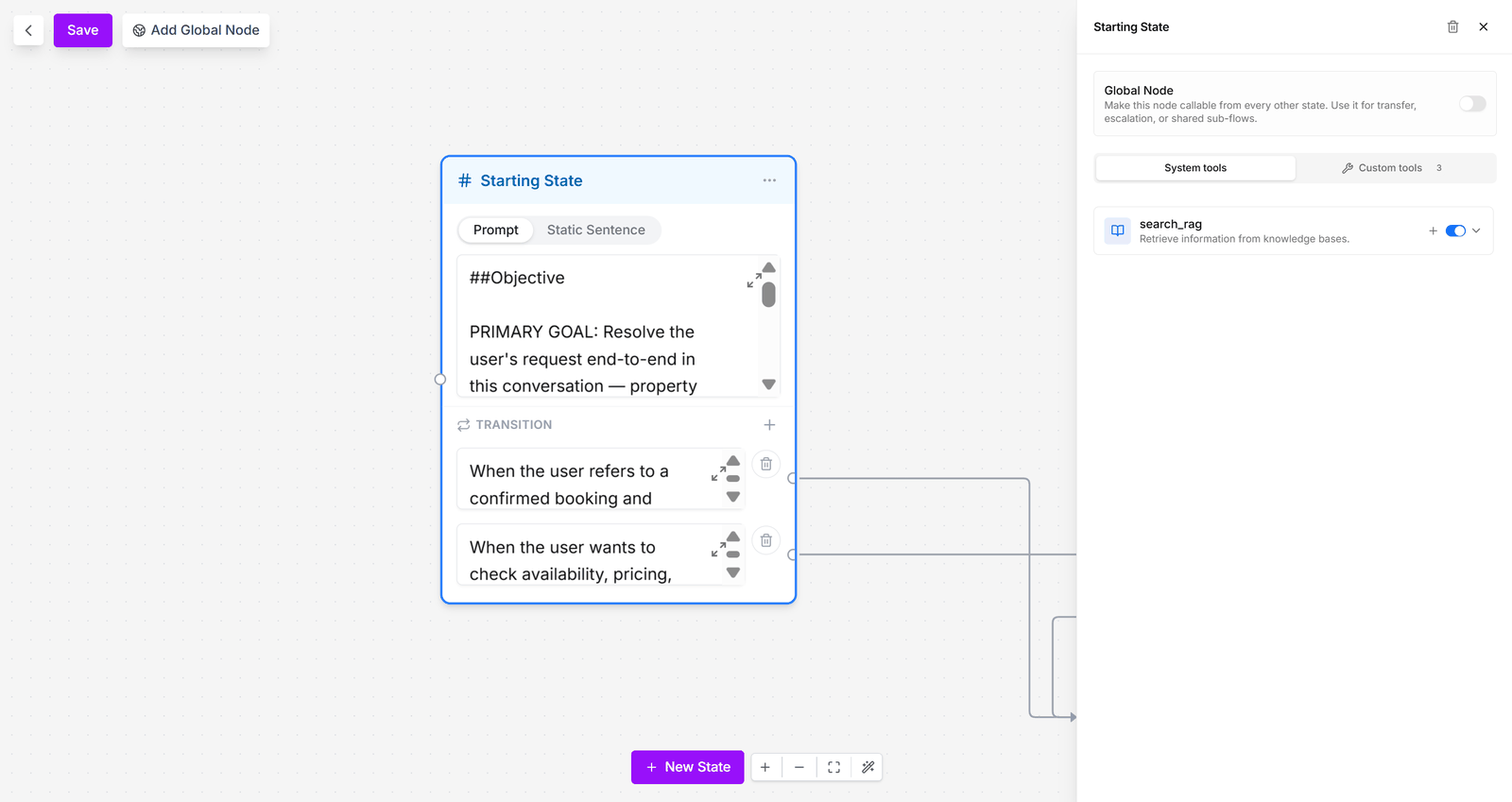
- Per-state tools are set in the Agent tab’s workflow editor: select a state and use the tools section in its side panel. Save the workflow to keep the changes.
Voice and chat
Tools are configured in the dashboard (or with Conductor); they can’t be set up through the API.