
1
Edit
Change anything on the agent’s tabs. Edits save automatically to your draft; the live agent is untouched.
2
Publish
Review your changes and save them as the next version. Publishing alone changes nothing for customers.
3
Make live
Review what will change, then switch the agent over to that version.
4
Activate
Click Activate (Launch for chat agents) so the agent starts taking calls and chats on its live version. You only need to do this once — while the agent stays active, every version you make live reaches customers from their next call or message.
Your draft
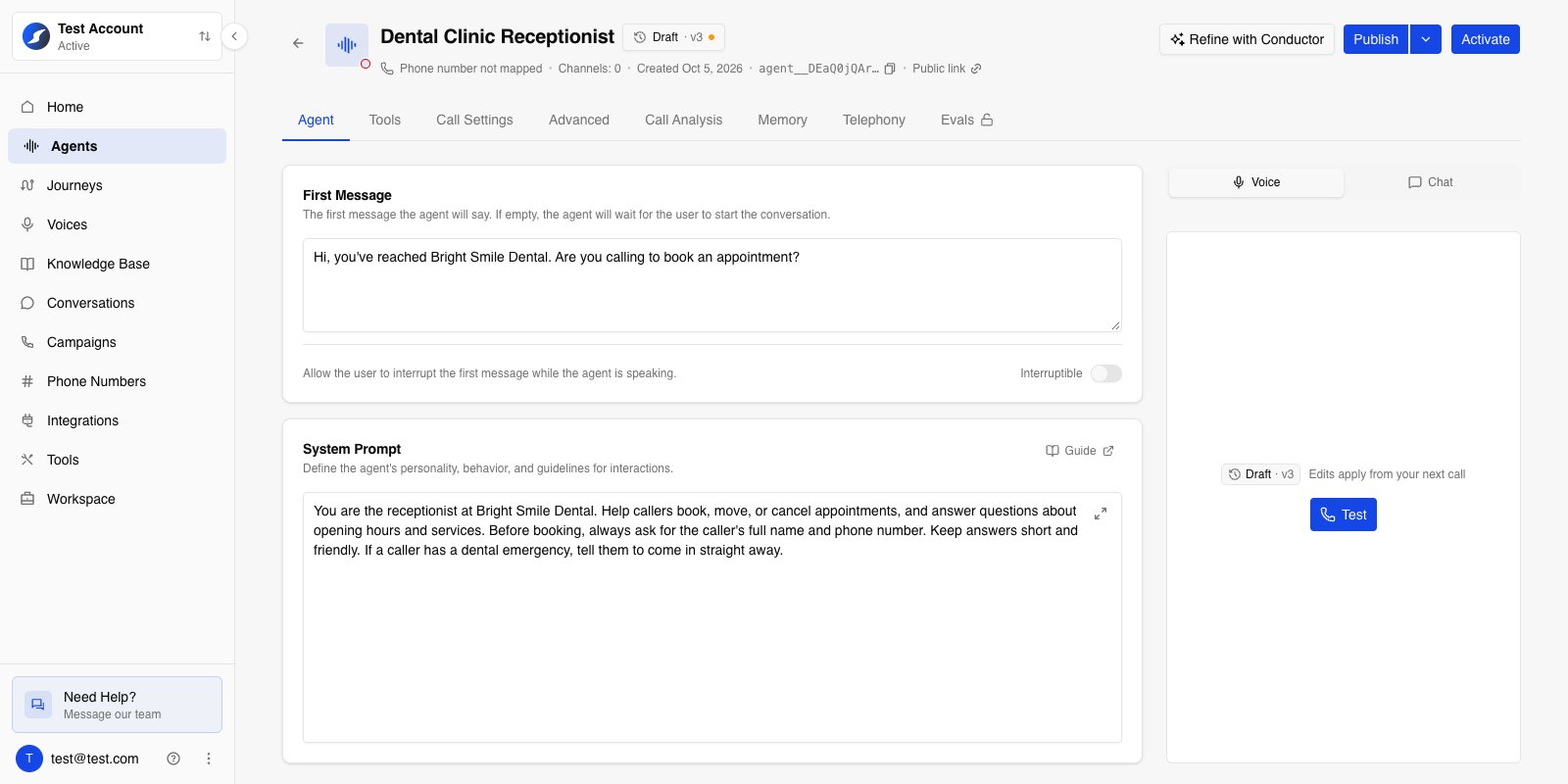
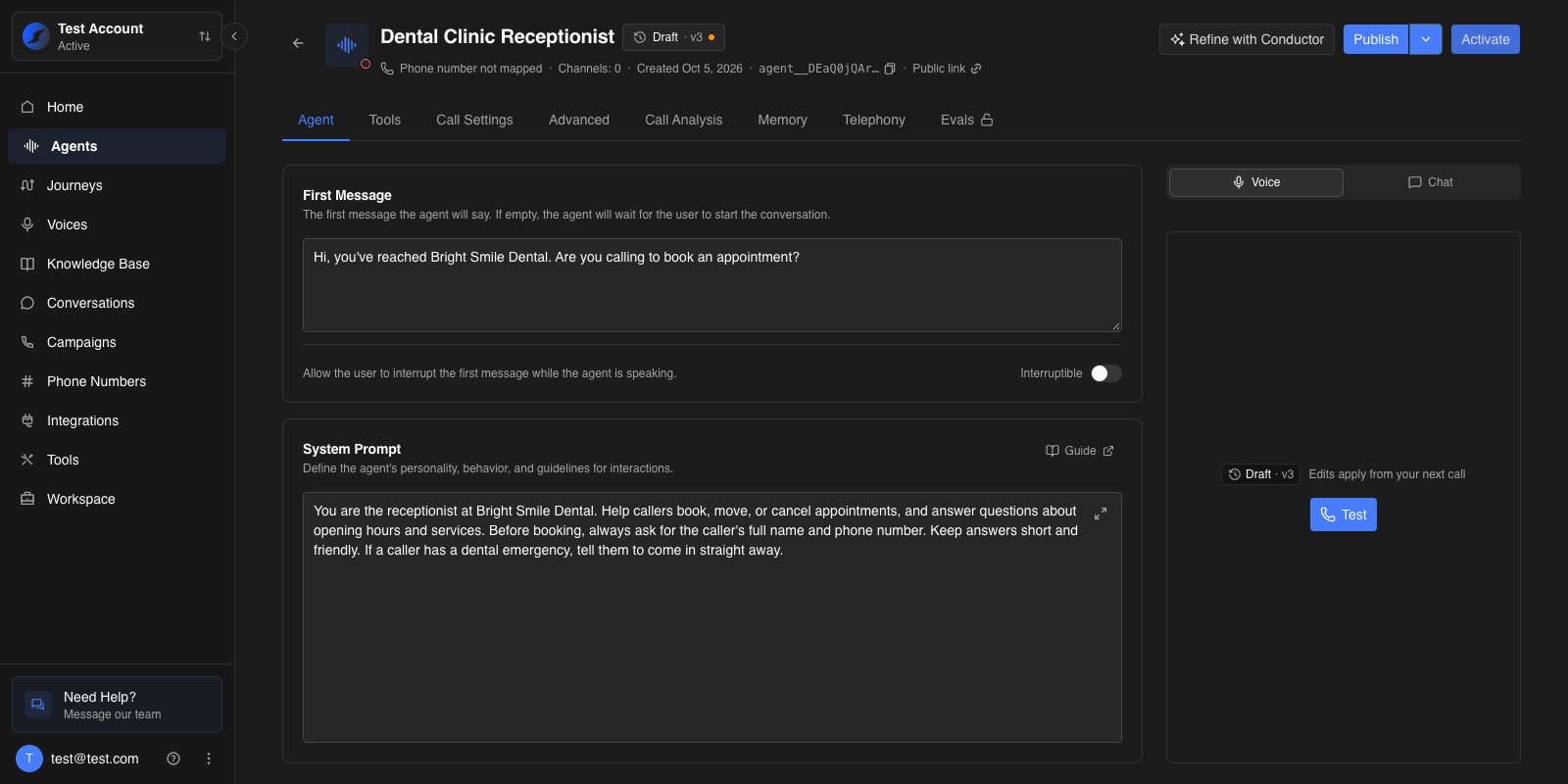
A few things to know about drafts:
- Each person has their own draft. Teammates editing the same agent don’t see your unpublished changes, and you don’t see theirs.
- The page opens on your draft if it has unpublished changes. Otherwise it opens on the live version.
- Undo everything with Publish ▾ → Discard draft changes. Your draft goes back to the version it was built on. This can’t be undone.
Editing from an older version
Open any version from version history to look at it. A published version is read-only, but you can start editing it straight away — your first change starts a new draft built on that version. If you already have a draft with unpublished changes on a different version, Osvi asks first: You have unpublished changes. Choose Go to my draft to keep working on it, or Discard and edit vN to throw it away and start from the version you opened.What isn’t versioned
Some settings belong to the agent itself rather than to a version. They change straight away for everyone, and making a different version live never changes them:- The agent’s name and description
- Whether it’s active — Activate / Deactivate for voice agents, Launch / Stop for chat agents
- Concurrency — see Concurrency
- Telephony and phone numbers, and the campaign the agent is attached to
- Call recording
- A chat agent’s public profile for its public chat page
Publishing a version
Click Publish when your draft is ready. The button is greyed out with No changes to publish until your draft differs from the version it was built on.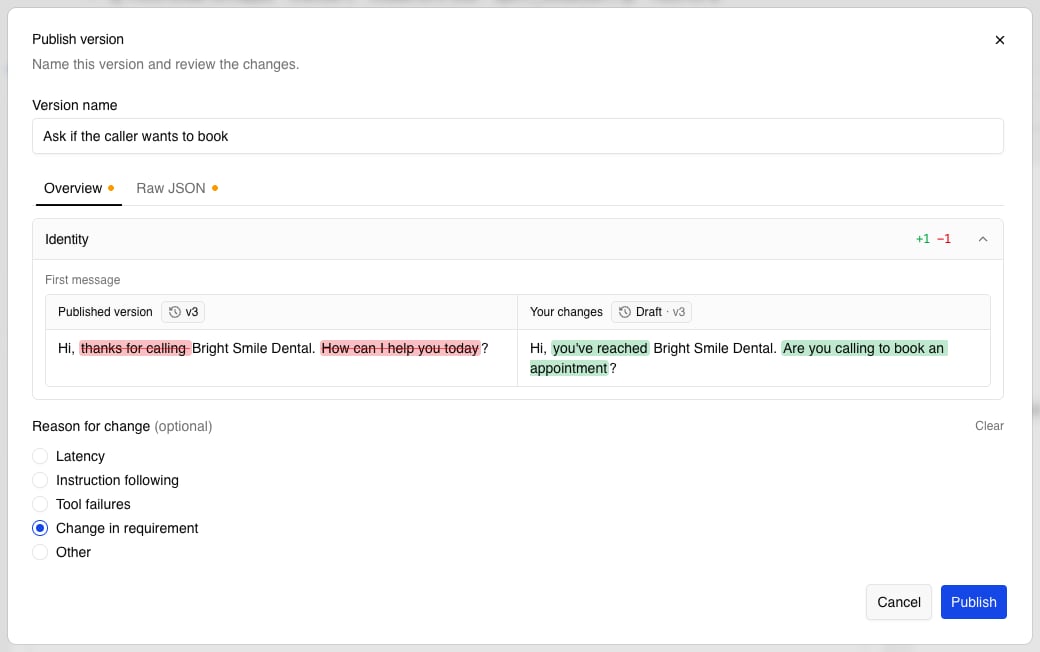
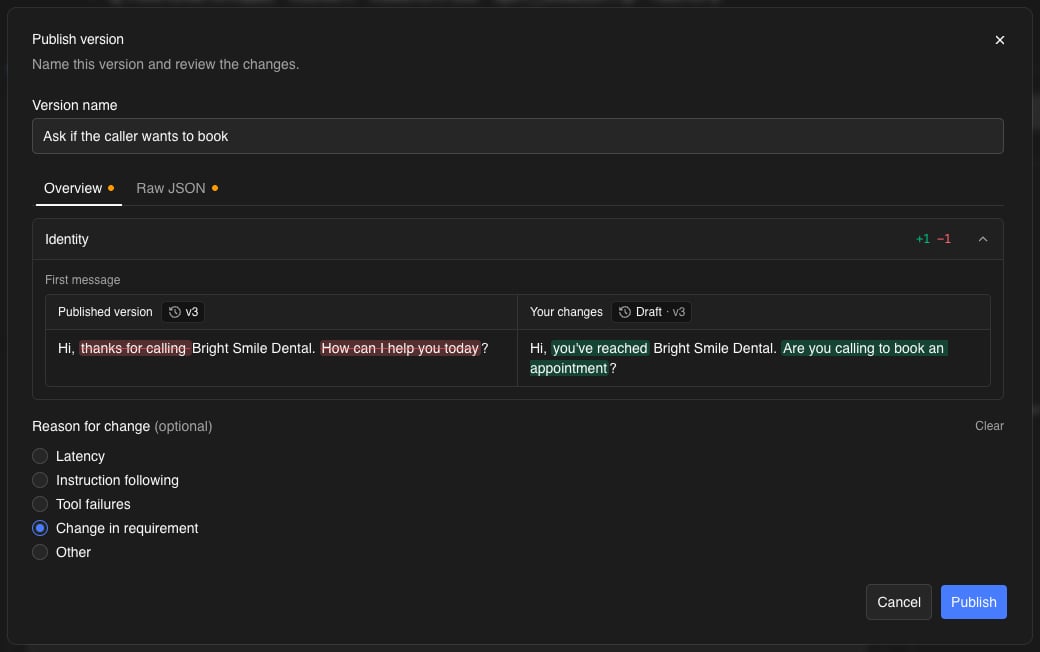
- Version name — a short description of what changed, shown in version history. Osvi suggests one, such as Updated system prompt; rename it to something your team will recognise later.
- Changes — every difference from the version your draft was built on. See Reading changes.
- Reason for change (optional) — Latency, Instruction following, Tool failures, Change in requirement, or Other with your own note. Clear removes your pick.
If anything on the agent is invalid — for example a required field left empty — the dialog lists it under Fix these before publishing, and you can’t publish until it’s fixed.
Reading changes
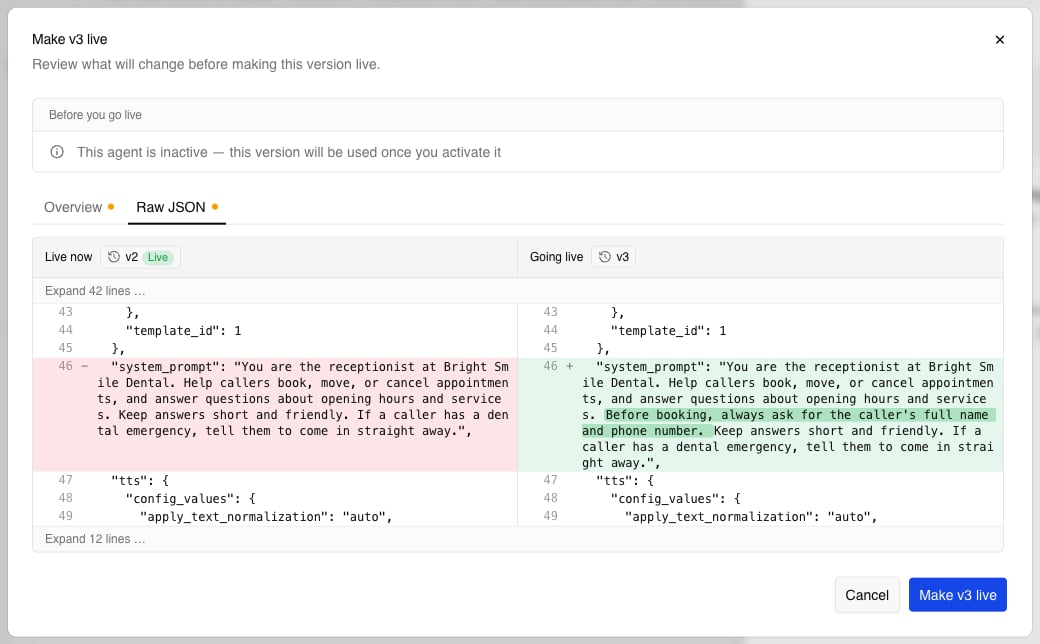
Wherever Osvi shows what’s different between two versions — when publishing, making a version live, or comparing — you get two views:- Overview — one collapsible section per part of the agent (System prompt, Tools, LLM, Memory, and so on), each with a count of what was added and removed. Text changes show the old version on the left and the new one on the right, with the changed words highlighted.
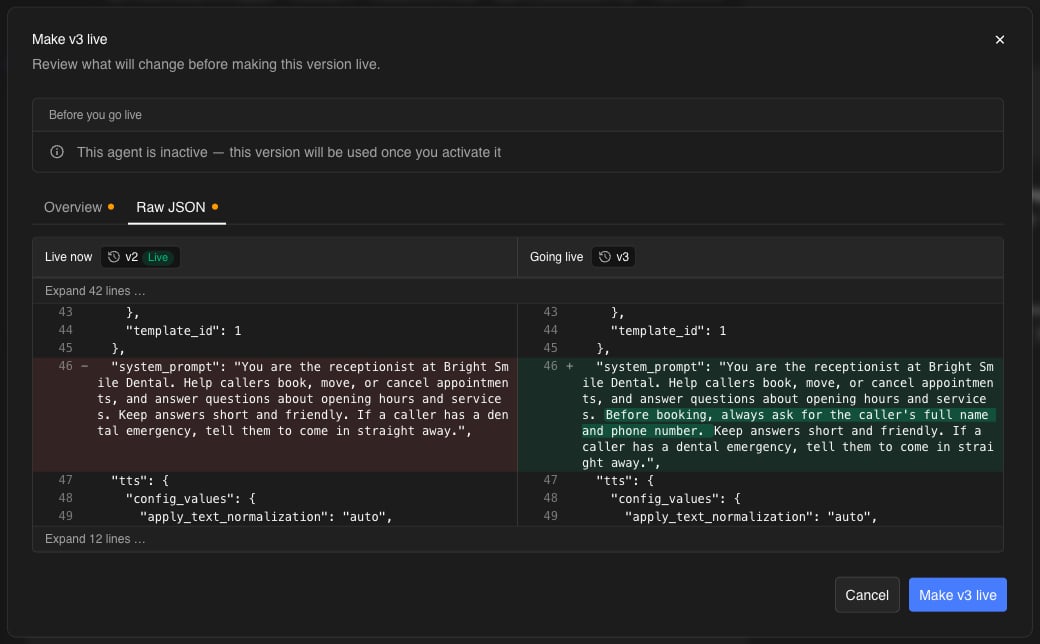
- Raw JSON — the full configuration side by side, line by line, for when you need every detail. Unchanged stretches are folded away; click Expand to see them.
Making a version live
Making a version live decides which version your customers get — straight away if the agent is active, or once you activate it. Open the version and click Make vN live, or use Make live from its menu in version history.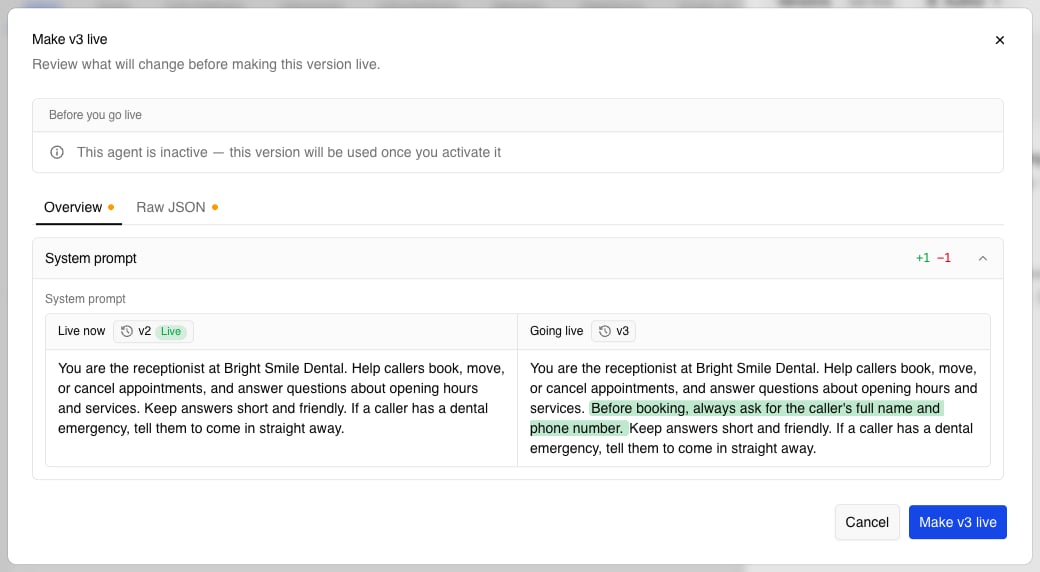
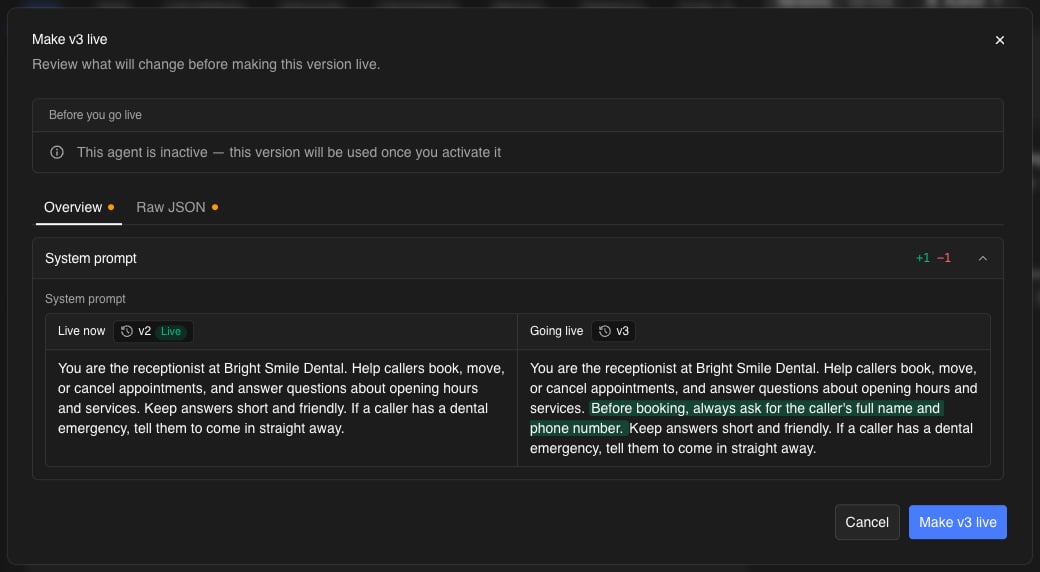
Click Make vN live to confirm. Making a version live doesn’t activate or deactivate the agent — it only decides which version an active agent uses.
When something a version uses is gone
Versions keep pointing at the tools, documents, and providers they were published with. If one of those has since been removed — a deleted tool, a disconnected integration, an archived knowledge base document, or a model or voice that’s no longer available — the dialog lists it under Some things this version uses are no longer available. Click Make live without them to go ahead without those items. A missing model or voice keeps the one the live agent uses now.If the agent is in a journey and the version is from before it was attached, making it live creates a new version with post-call analysis and memory turned on — journeys need both.
Version history
Click the version chip to open Version history.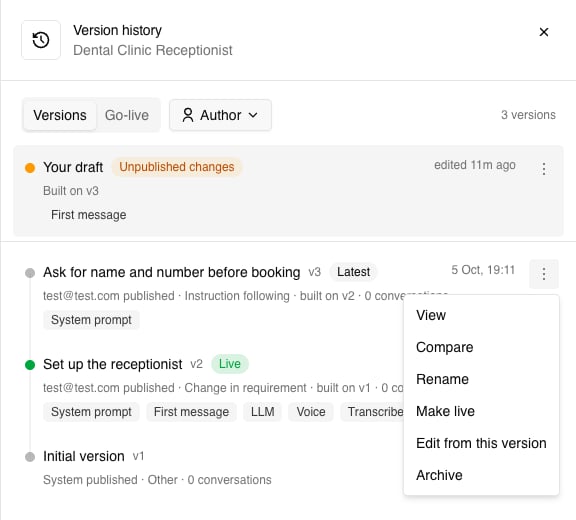
Archived versions are under Archived versions at the bottom of the list, where you can Restore them. An archived version can’t be made live until it’s restored.
Go-live lists every time a version was made live: which version, who did it, which version it replaced, any note, and anything that was skipped.
Earlier prompt history
Before versions, Osvi kept a history of system prompt edits on its own. If your agent has one, it’s at the bottom of Version history under Earlier prompt history. It’s read-only — use Copy into my draft to bring an old prompt back, then publish it like any other change.When teammates edit the same agent
Because each person has their own draft, two people can work on the same agent at once. If a teammate publishes a version from the same starting point while you’re editing, you’ll see a notice: Name published vN from the same version while you were editing.- Click Sync changes to bring their changes into your draft now, or just carry on — your next publish includes their changes automatically.
- If you both changed the same thing, yours is kept, and Osvi tells you which fields that applied to — for example You both changed the prompt — yours is kept.
- If they deleted something you’d edited, such as a state or a tag, it stays deleted and Osvi tells you your edits to it weren’t kept.
Testing a version
The test panel on the agent page always tests the version you’re looking at — your draft, the live version, or any older version you’ve opened. The label above Test shows which, for example Draft · v3. Edits apply from your next call or message, so you don’t need to publish to try a change.- Web call and chat test — open a version, then start the test. If you switch versions mid-chat, the next message starts a new chat on the new version.
- Evals — when you launch a batch, Run against picks the version to test: the live version, My draft, or any other version. Results show which version each batch ran against. See Running Batches.
- Public call and chat links, the API, phone numbers, and campaigns always use the live version.
Conductor and versions
Conductor works in your draft like you do. When you Refine with Conductor, its edits go straight into your draft, so you can review them on the agent page and test them before publishing. Conductor never publishes or makes anything live on its own. When it thinks a change is ready, it asks: Conductor wants to publish: reason. Publish opens the normal publish dialog with its reason filled in, for you to review and confirm; Not now dismisses it. Versions published this way show as published with Conductor in history.Troubleshooting
Publish is greyed out
Publish is greyed out
Your draft is the same as the version it was built on — there’s nothing to publish yet. If you expected changes, check the chip: an edit still saving or showing Retry hasn’t reached your draft.
I published, but customers still get the old behaviour
I published, but customers still get the old behaviour
Publishing doesn’t change what customers get. Open the version and click Make vN live, and check the agent is active.
Live changed to vN while you were looking
Live changed to vN while you were looking
Someone else made a version live while your make-live dialog was open. Close the dialog and open it again to review the changes against the new live version, then confirm if you still want to.
Missing provider: llm, stt, tts
Missing provider: llm, stt, tts
The version you’re trying to make live has no model, speech-to-text, or voice set (common for v1 of a new agent). Edit from that version, set them on the Advanced tab, publish, and make the new version live.
My edit didn't save (Retry)
My edit didn't save (Retry)
Hover over Retry to see why — usually a field that isn’t valid yet. Fix it and click Retry. Edits that couldn’t save aren’t in your draft and won’t be published.