
The build form
A new build starts with a short form: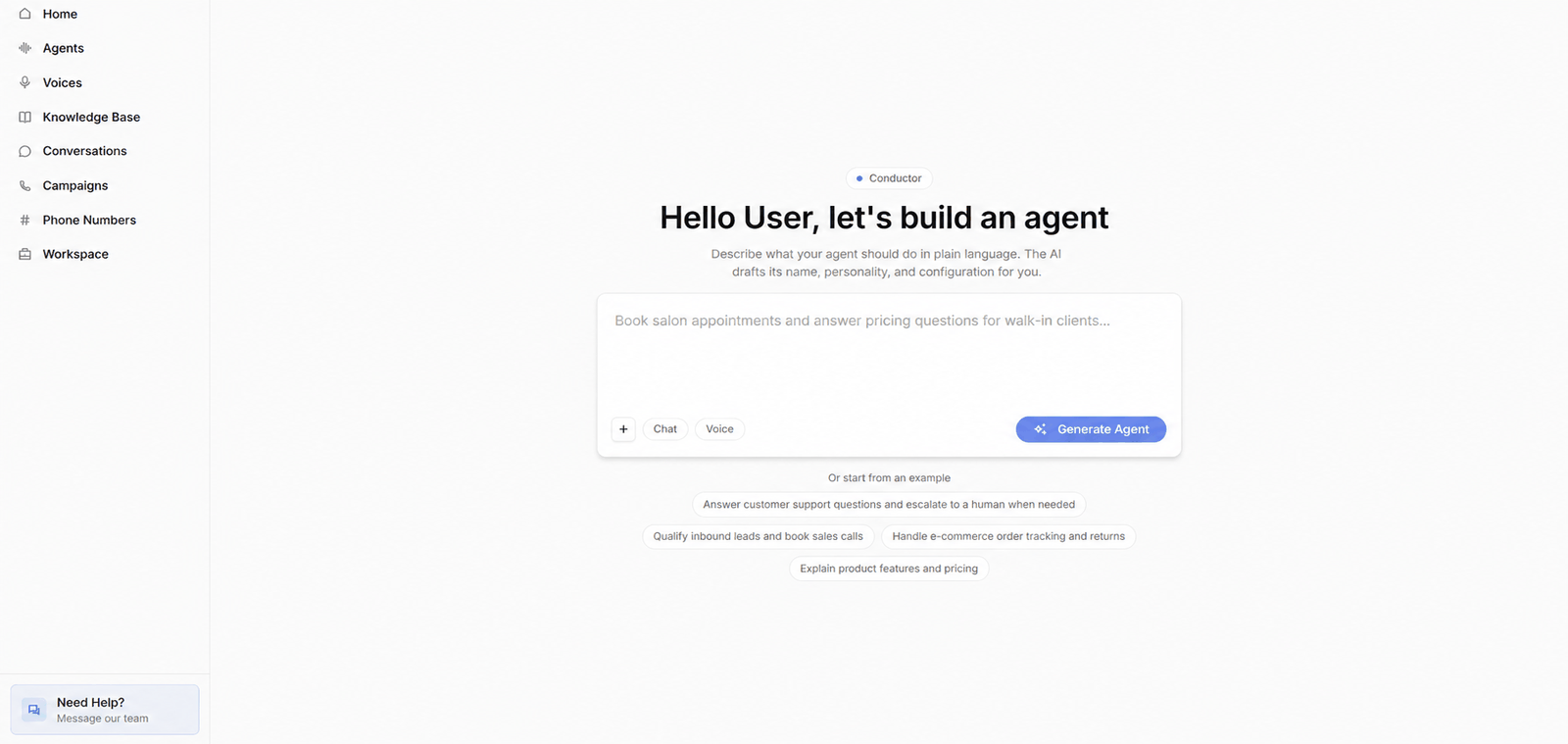
Click Generate Agent, or pick one of the examples under Or start from an example to prefill the description.
Referencing an agent
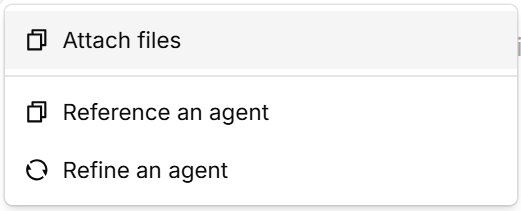
Attaching files
Attach documents that describe your business — an FAQ, a pricing sheet, a call script — and Conductor uses them as context while drafting.- PDF, Markdown, TXT, or CSV (Word documents are not supported).
- Up to 5 files per message, 10 MB each.
Files attached in Conductor are not added to your knowledge base, and the agent can’t search them after it’s created. To give the agent a document it can look things up in, upload it to the knowledge base first — Conductor can attach existing knowledge base documents to the agent.
Working with Conductor
After you click Generate Agent, the build page opens: the conversation with Conductor on the left and a live Preview of the draft agent on the right.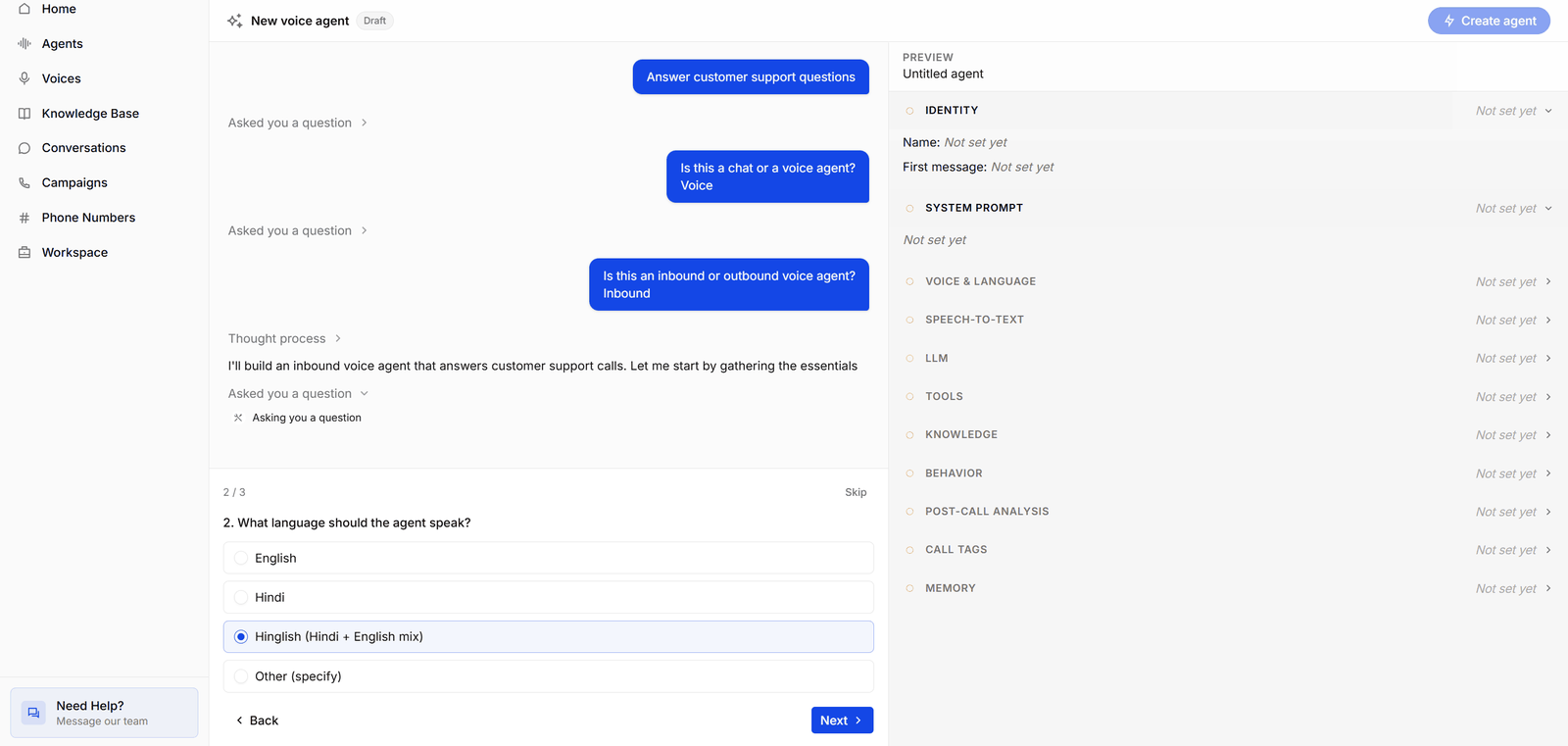
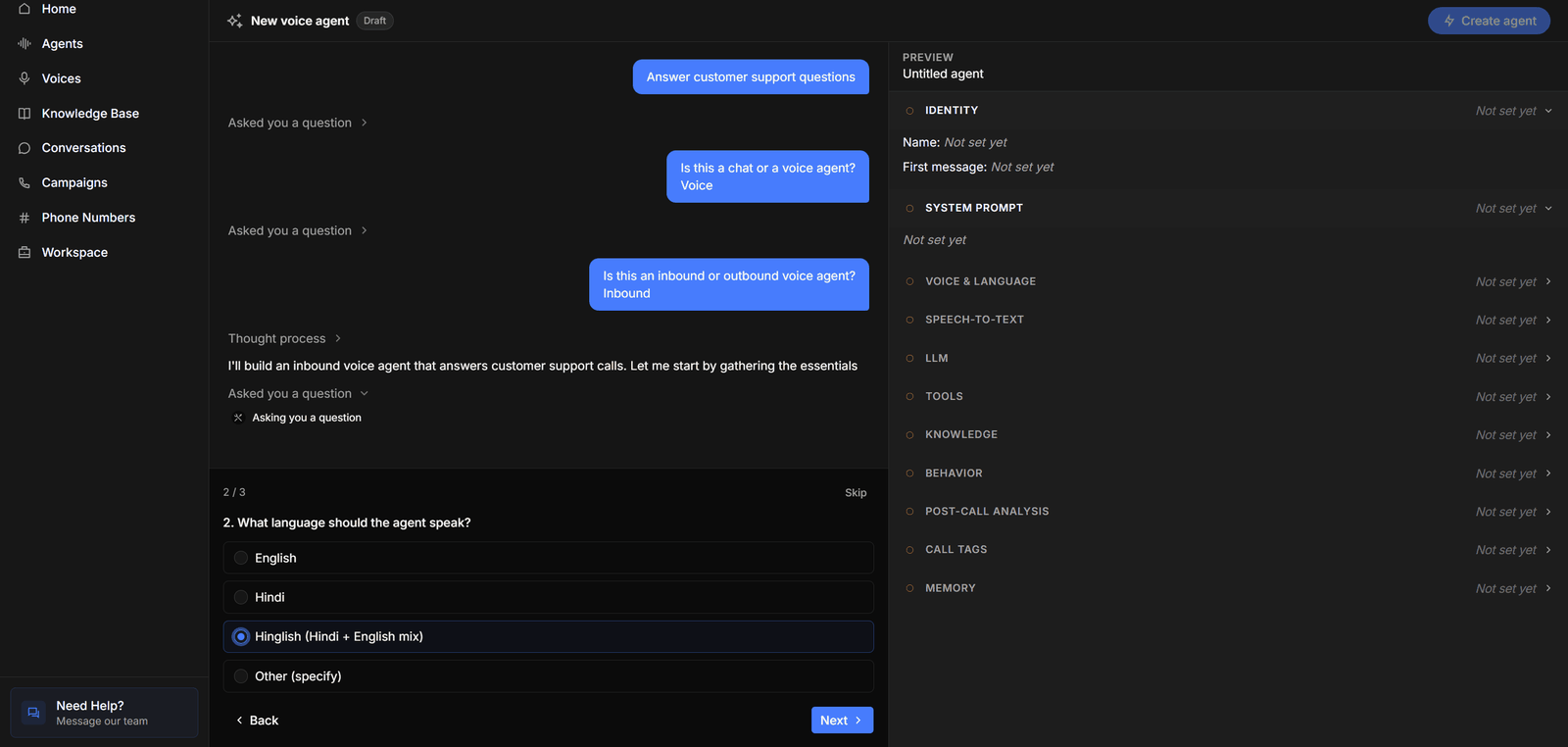
- The header shows the agent’s name — New voice agent or New chat agent until Conductor names it — with a Draft badge, and the Create agent button, which stays disabled until the draft is ready.
- The conversation shows your messages and Conductor’s replies. Conductor’s steps are condensed into short activity lines such as Asked you a question, Thought process, or Added 1 tool — click one to expand the details.
- Questions replace the message box when Conductor needs details — above, it has already asked whether the agent is chat or voice and inbound or outbound, and is now asking which language to speak. Questions come one at a time (2 / 3 shows your progress); pick an option, or choose Other (specify) to type your own answer, and move between them with Back and Next. You can review your answers before submitting, and questions you leave unanswered are sent without an answer. Skip skips the whole set.
- The Preview groups the draft into sections — Identity, System prompt (or Flow for multi-prompt agents), LLM, Tools, Knowledge, Behavior, and Memory, plus Voice & Language, Speech-to-text, Post-call analysis, and Call tags for voice agents. An amber circle and Not set yet mean a section hasn’t been filled in; a green tick means Conductor has set it. Expand a section to see its values.