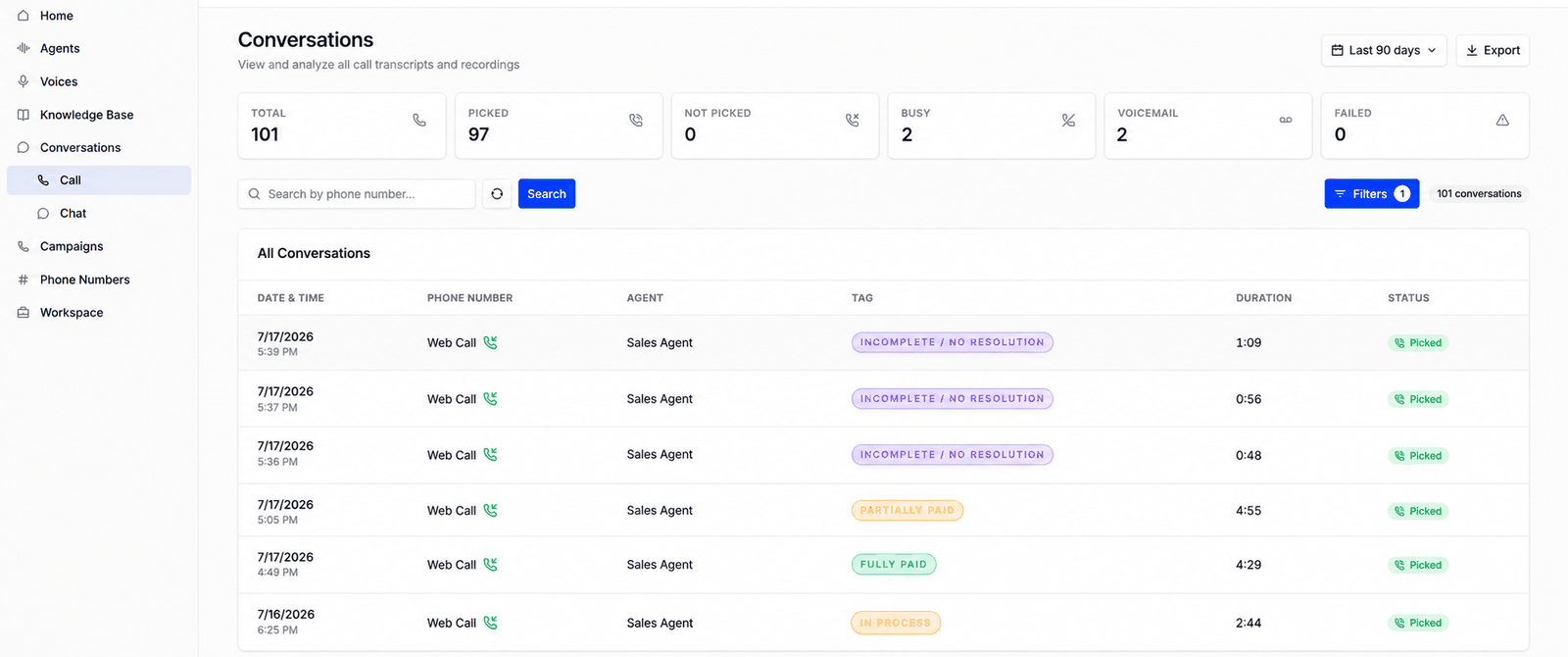
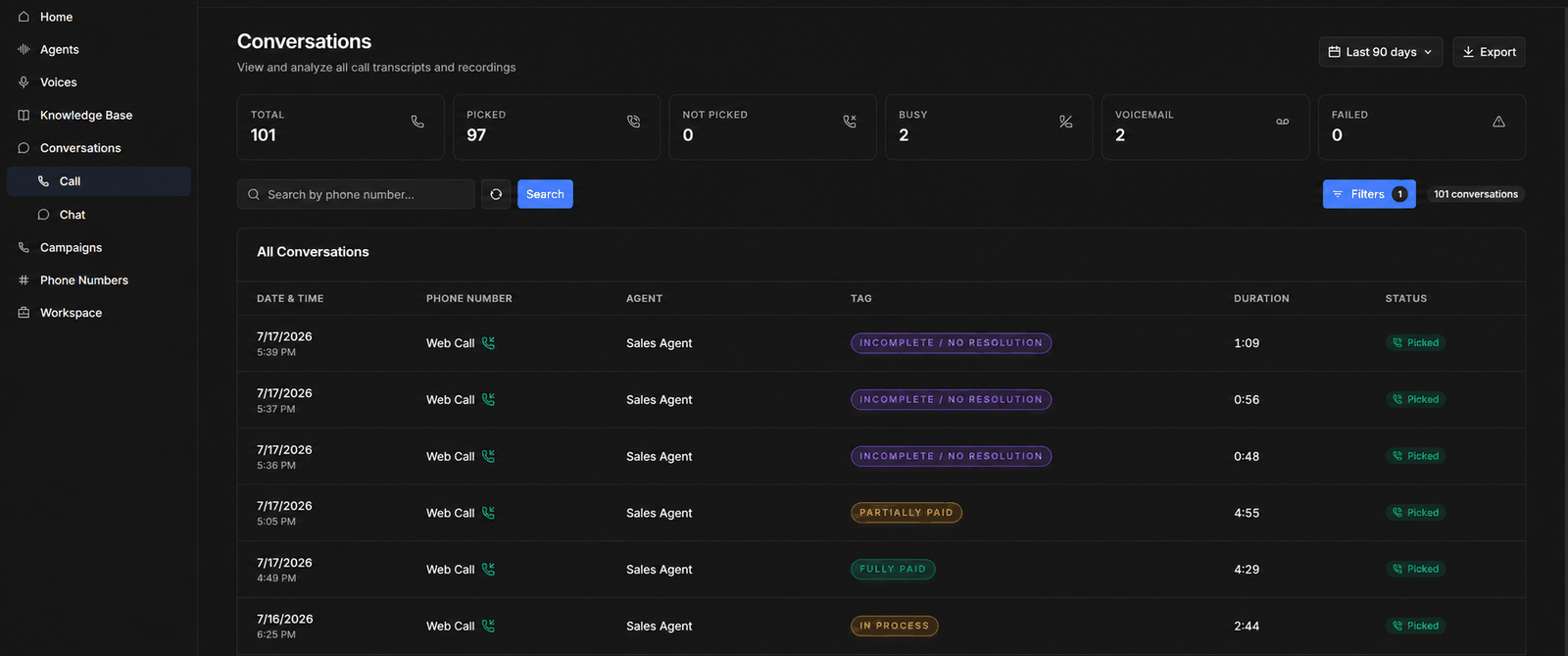
Conversations is the log of every call your agents have handled. It’s where you verify agent behaviour, audit individual calls, and export outcomes.

Finding calls

The Conversations call log with status cards, filters, and the call listThe Conversations call log with status cards, filters, and the call list
Cards across the top count the calls in the current date range by outcome — total, picked, not picked, busy, voicemail, and failed — so you can see the shape of a day before opening anything. Below them, search by phone number or open Filters. The call log defaults to the last 7 days and filters by: Plus date range, call type, and phone number. To take these calls out of Osvi as a CSV, see Export Reports.

Inside a call

Click any call to open Call Details. The top of the panel is the same whichever tab you’re on: when the call happened and how long it ran, any tags the analysis applied, an audio player with a download button, and the AI summary.
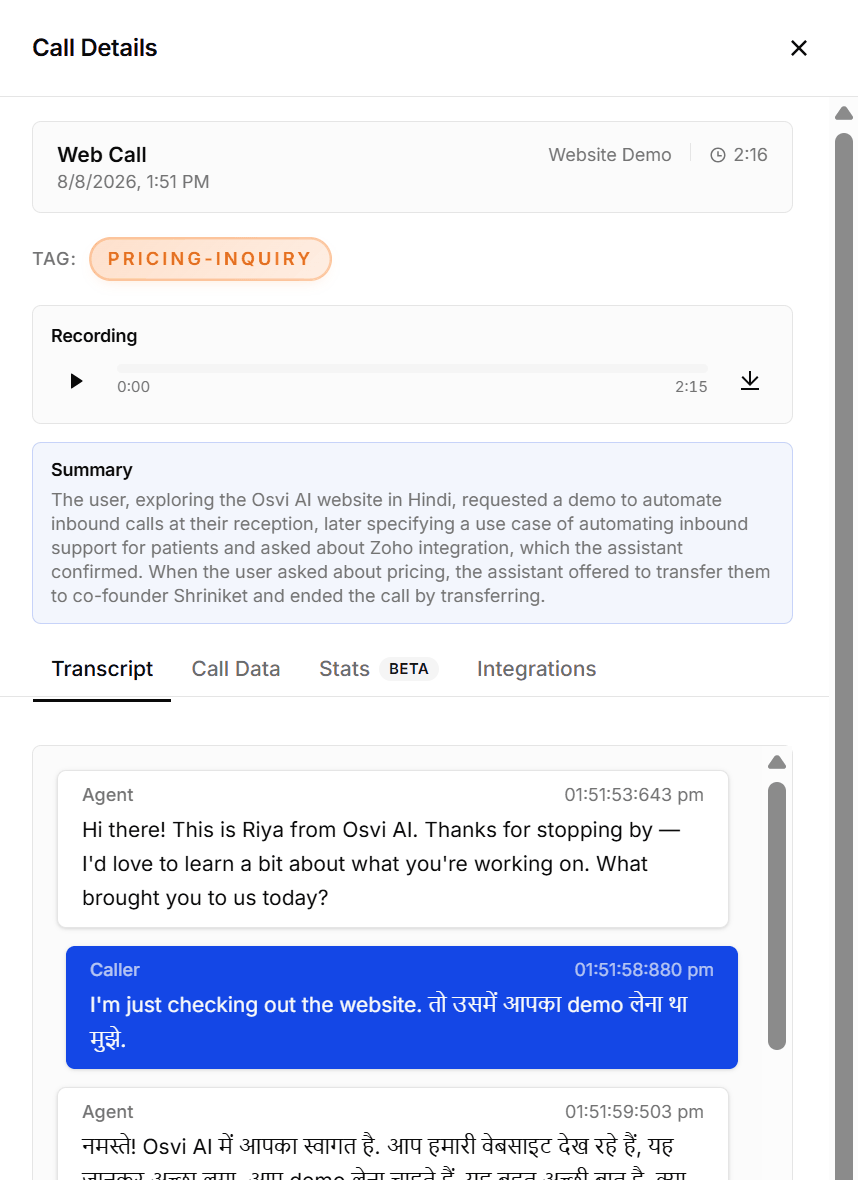
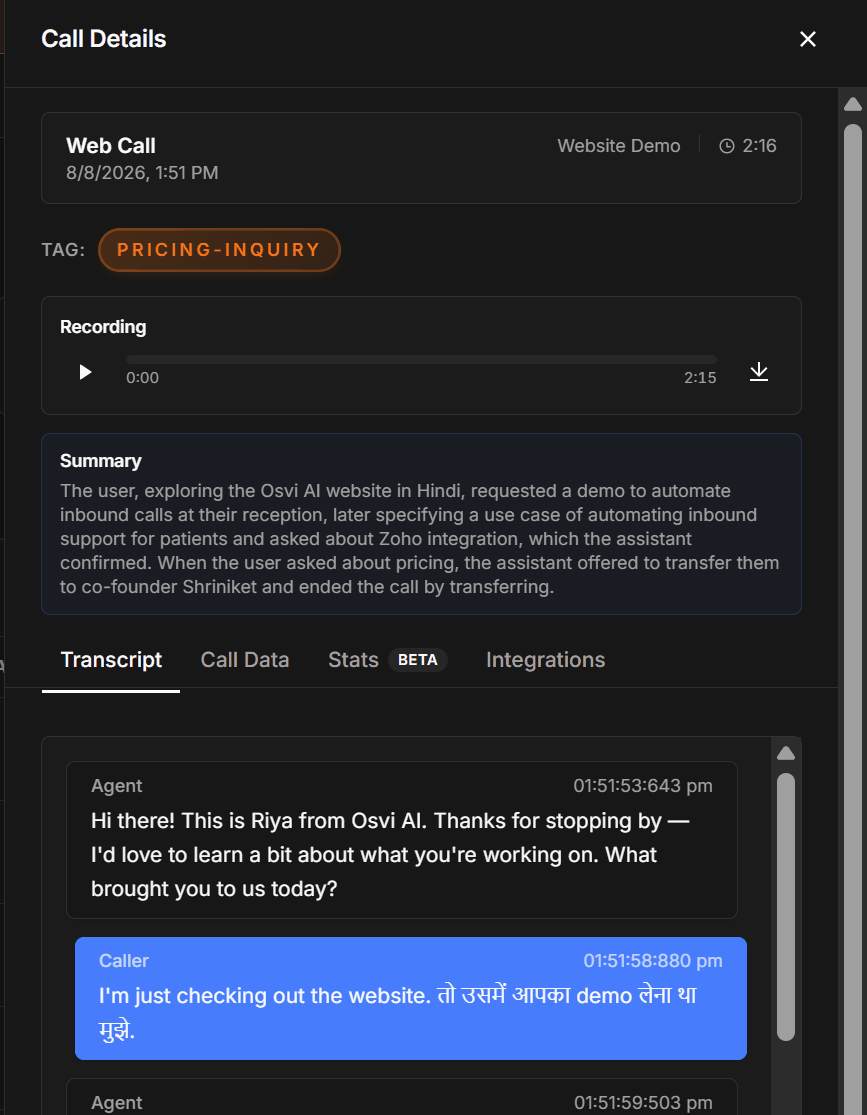
Call Details showing the recording, summary, and the transcript tabCall Details showing the recording, summary, and the transcript tab
Below that are four tabs:

Transcript

The full conversation, turn by turn, with timestamps — agent on one side, caller on the other. Reading it alongside the recording catches things the text hides: pronunciation problems, awkward pauses, talking over the caller.

Call Data

What call analysis extracted from this call — your data fields and the structured output — plus the call’s own details, such as who ended it and why. End reasons are the fastest diagnostic when calls aren’t going the way you expect.

Stats

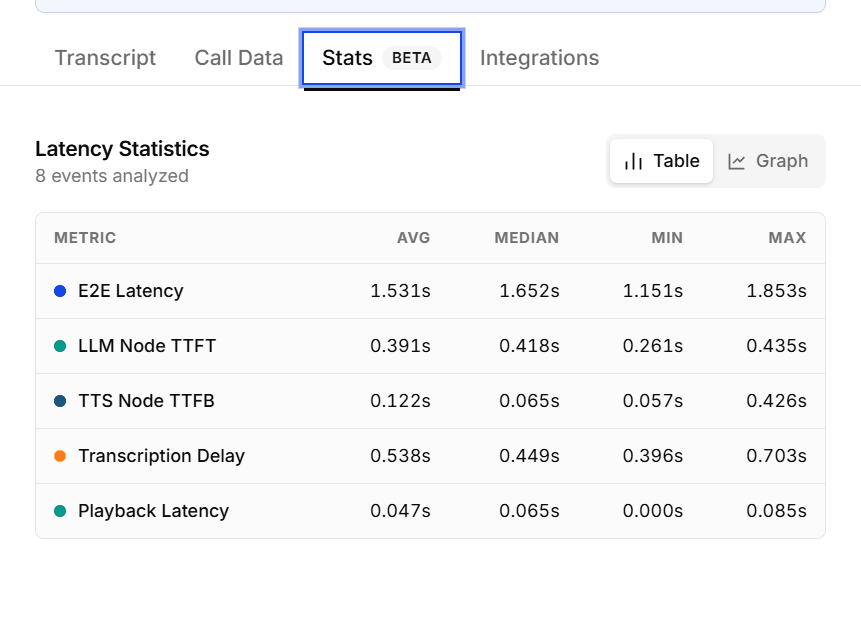
The Stats tab with latency statistics per metricThe Stats tab with latency statistics per metric
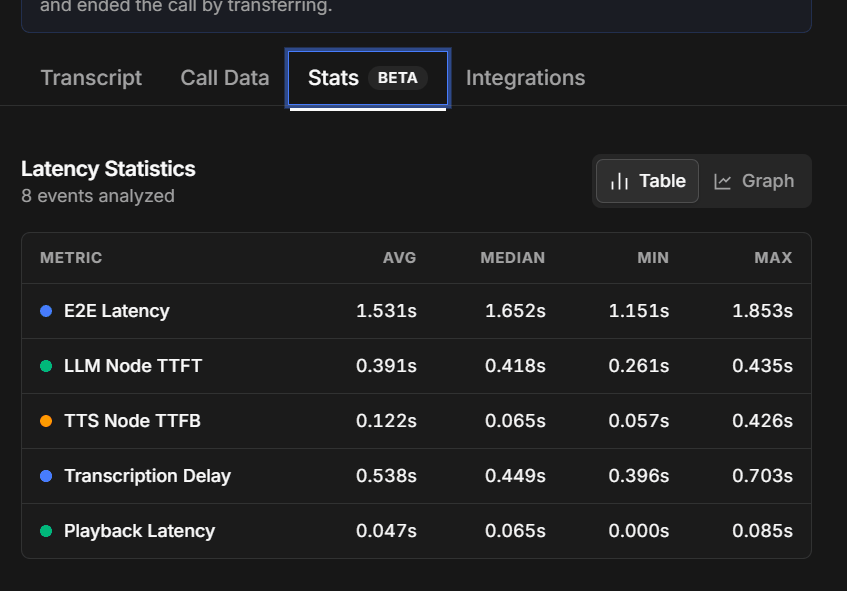
Timing for this call, as a table or a graph: end-to-end latency, how long the model took to start replying, how long the voice took to start speaking, transcription delay, and playback latency — each with its average, median, minimum and maximum. This is where to look when a caller says the agent felt slow. See Models and Speech for the figures a healthy stack produces.

Integrations

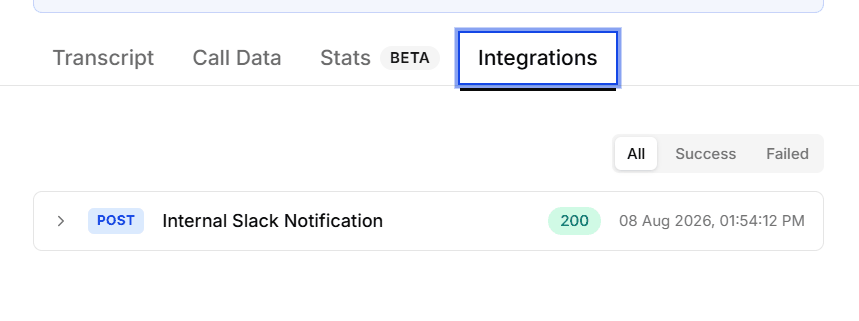
The Integrations tab listing webhook deliveries with their statusThe Integrations tab listing webhook deliveries with their status
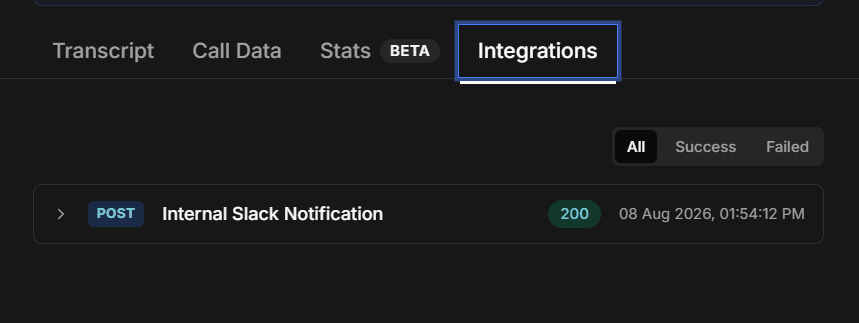
Every webhook delivery for this call, with its method, name, response status and timestamp — filter to Success or Failed. Expand one to see what was sent and what came back. This is the first place to check when a call looks fine in Osvi but never reached your system.

Reviewing chat sessions

Text conversations have their own log under Conversations → Chat, covered in Chat agents.
Make a habit of filtering by status weekly: a rising failed or voicemail share usually points at list quality or calling-window problems, not the agent. Combine the duration filter with picked to find suspiciously short answered calls — they’re usually instant hang-ups worth listening to.