The model that decides what your agent says, the voice it says it in, and the transcription that lets it hear — all three are set on the agent’s Advanced tab, along with its knowledge base and call limits. The tab has five sections — LLM, Text to Speech, Speech to Text, Knowledge Base, and Concurrency — listed on the left, with the settings for the selected one on the right. LLM, Text to Speech, and Speech to Text each have their own Save Configuration button; Knowledge Base and Concurrency save as you change them.
A new agent built by hand — rather than with Conductor — has no LLM, voice, or transcription set. Until all three are configured, activating it fails with Missing LLM configuration, Missing STT configuration, or Missing TTS configuration. This tab is a setup step, not optional tuning.
If a provider has trouble mid-call, Osvi switches to a backup automatically so the call keeps going. A transcript may therefore show a different provider from the one set here.
Measured on Osvi production calls, from the caller finishing speaking to the agent starting to reply. Over 3s is the share of replies that kept the caller waiting past the point a pause starts to feel like dead air. Your numbers will move with prompt length, connection quality, and language. Several stacks land at the same Network figure, so Over 3s is what separates them: the English stack in the last row is three times more likely to leave a long pause than the Indian-languages one above it. The model you pick matters most. gemini-2.5-flash starts replying in about half a second; gemini-3.5-flash and gpt-4.1-mini take roughly twice as long, and every stack built on them is slower end to end. Sensible starting values for the rest:

LLM
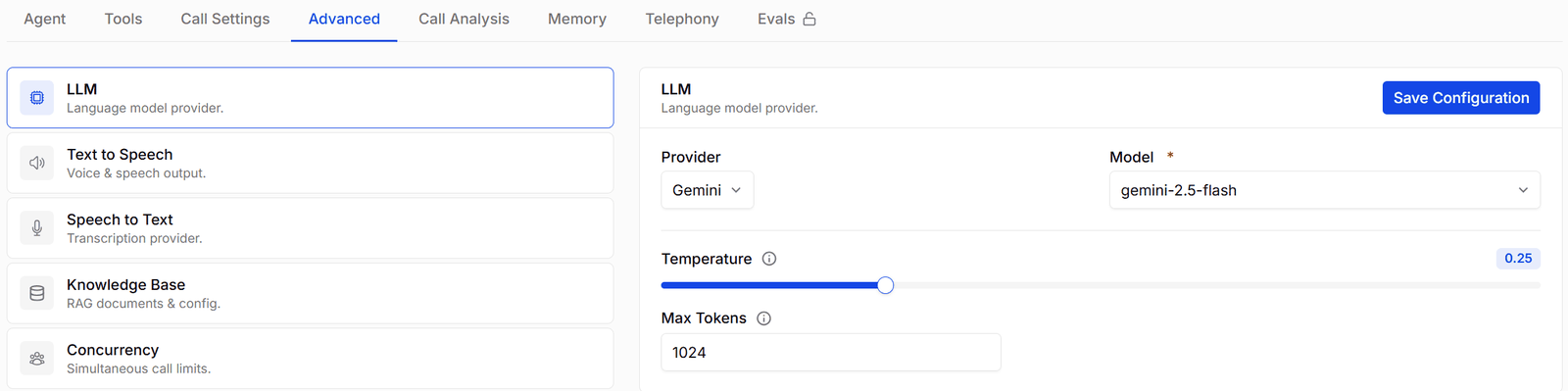
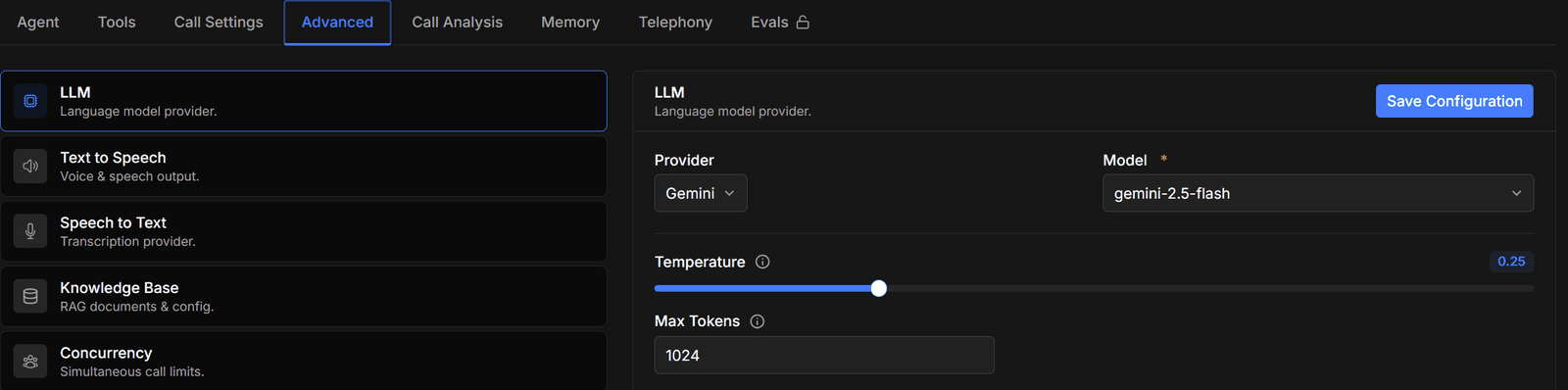
The LLM section with provider, model, and temperatureThe LLM section with provider, model, and temperature
Pick a Provider and a Model, then the settings that provider offers.
Each provider keeps its own settings. Switch provider and switch back, and your earlier configuration is still there.The Supporting LLM — a small helper model for filler speech — is on the Call Settings tab, not here.

Text to Speech
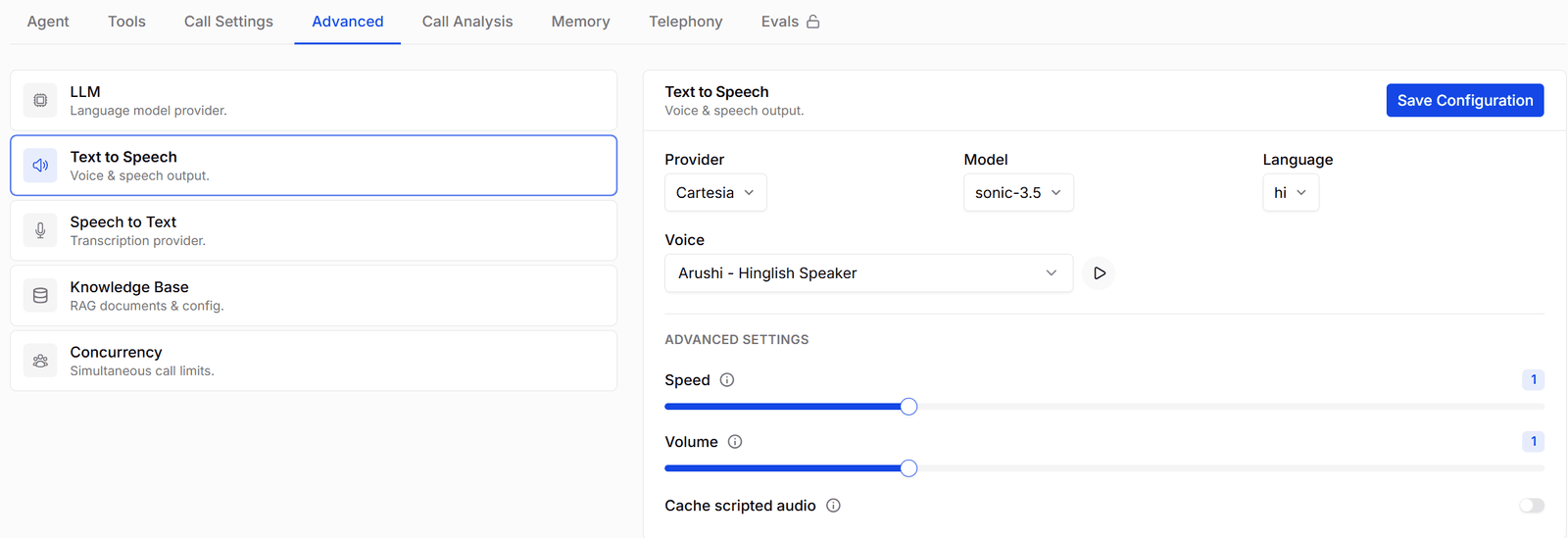
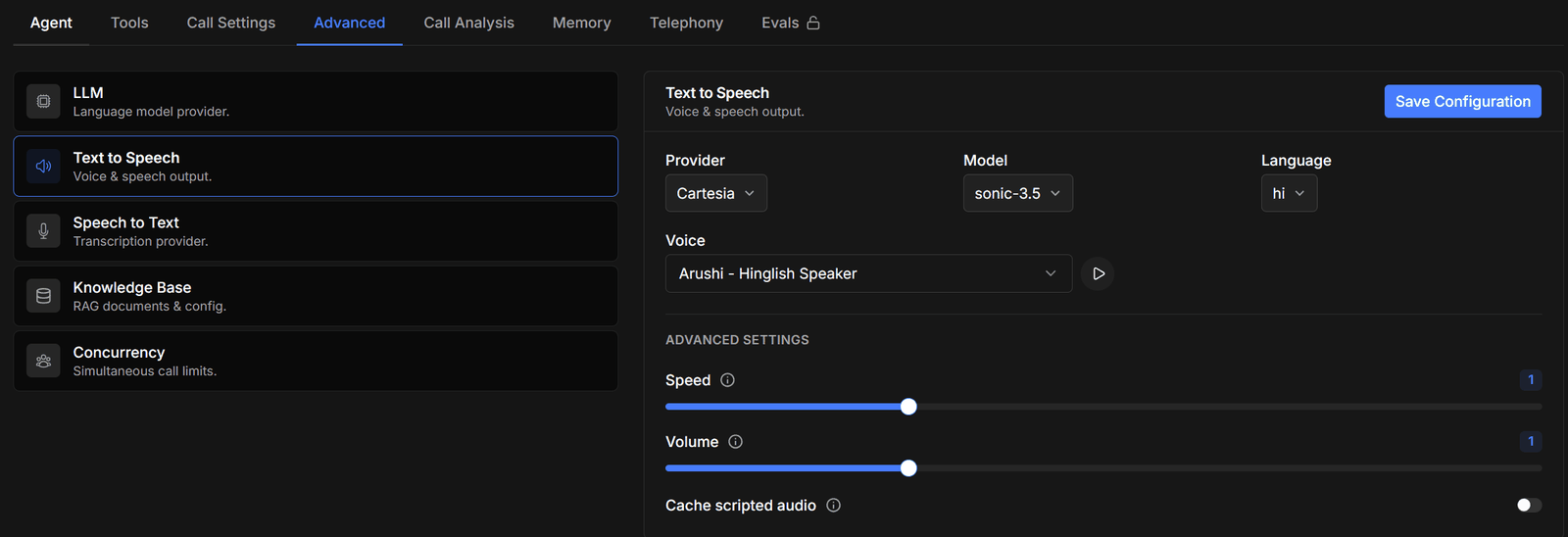
The Text to Speech section with provider, model, language, and voice pickerThe Text to Speech section with provider, model, language, and voice picker
Choose Provider, Model, and Language, then a Voice. The voice box searches the catalogue for that provider, and you can paste a voice ID from the provider directly. Press play to hear a sample. Under ADVANCED SETTINGS, providers offer their own controls — for example Speed and Volume (Cartesia), or Stability and Similarity boost (ElevenLabs). Cartesia also has Cache enabled, which replays stored audio for fixed lines such as transfer notices and the goodbye instead of re-synthesising them each call. Browse the full voice catalogue and set pronunciation rules on the Voices page.
Voice language and transcription language are set separately. Make sure both match the language your callers actually speak.

Speech to Text
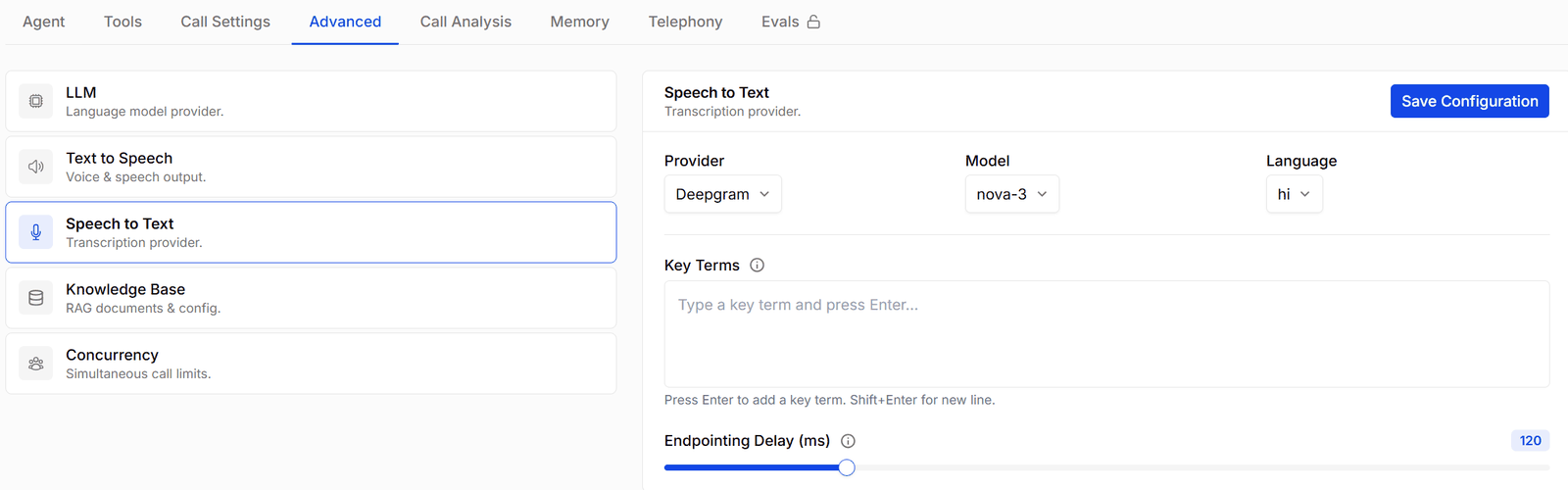
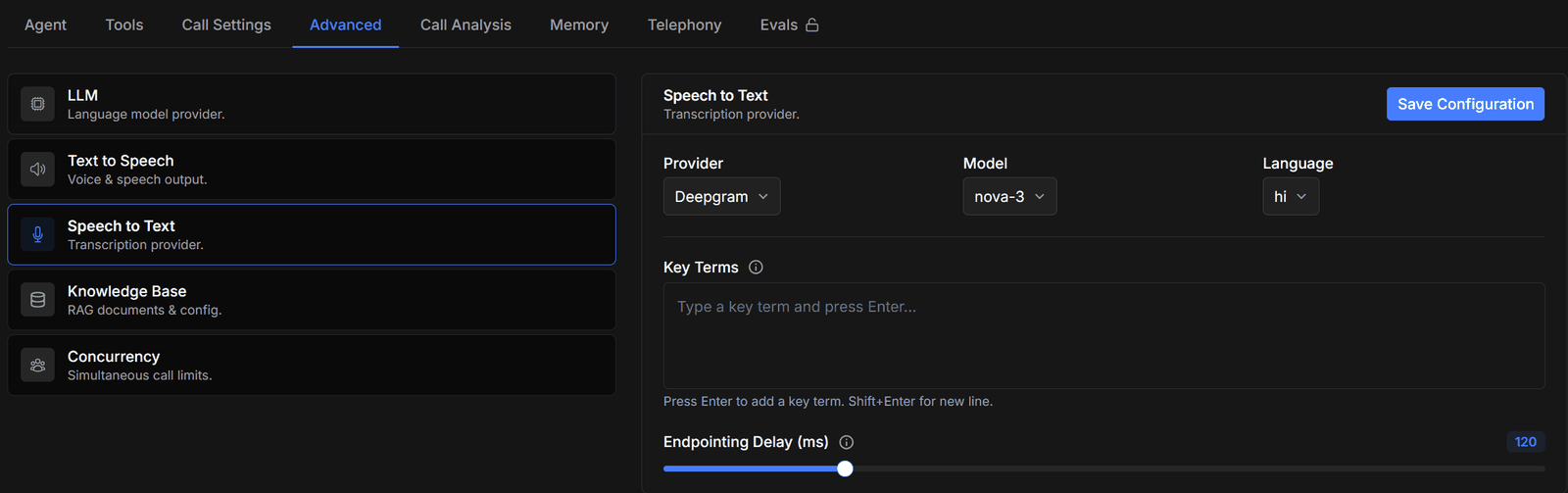
The Speech to Text section with provider, model, language, and language hintsThe Speech to Text section with provider, model, language, and language hints
Choose Provider, Model, and the Language your callers start in. Depending on the model you also get: The language here is where the call starts, not a lock — the Language switch tool changes both transcription and voice mid-call when a caller asks. Language switching doesn’t work with Deepgram flux models.
Not every model covers every language. Gemini Transcribe, for example, doesn’t support Tamil — use Sarvam or ElevenLabs for Tamil calls.

Voice-to-voice models

Some models, such as Gemini Live, listen and speak for themselves. When one is selected:
  • Speech to Text is greyed out — the model hears the caller directly, so there’s nothing to configure.
  • Text to Speech becomes System Voice — the agent’s voice comes from the Voice setting in the LLM section. Your saved text-to-speech settings are only used for scripted system messages, such as the transfer announcement.
  • Response Timing and Supporting LLM on the Call Settings tab are unused too.
Your previous settings are kept, and apply again in full if you switch back to a standard model.

Knowledge Base

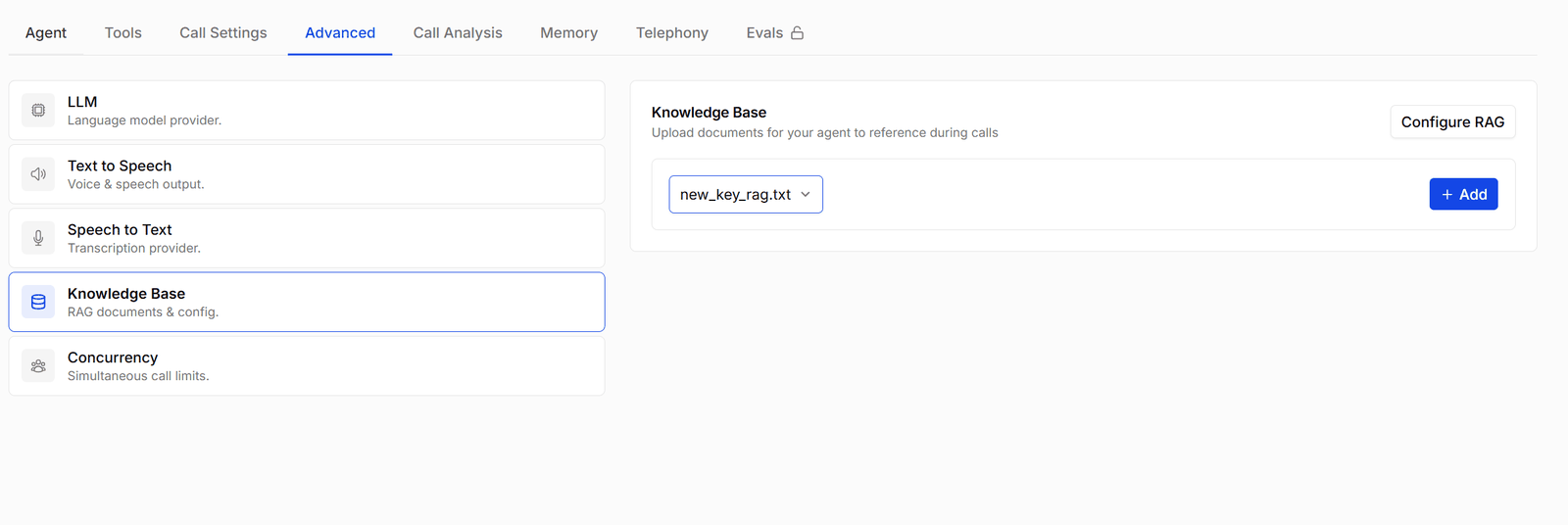
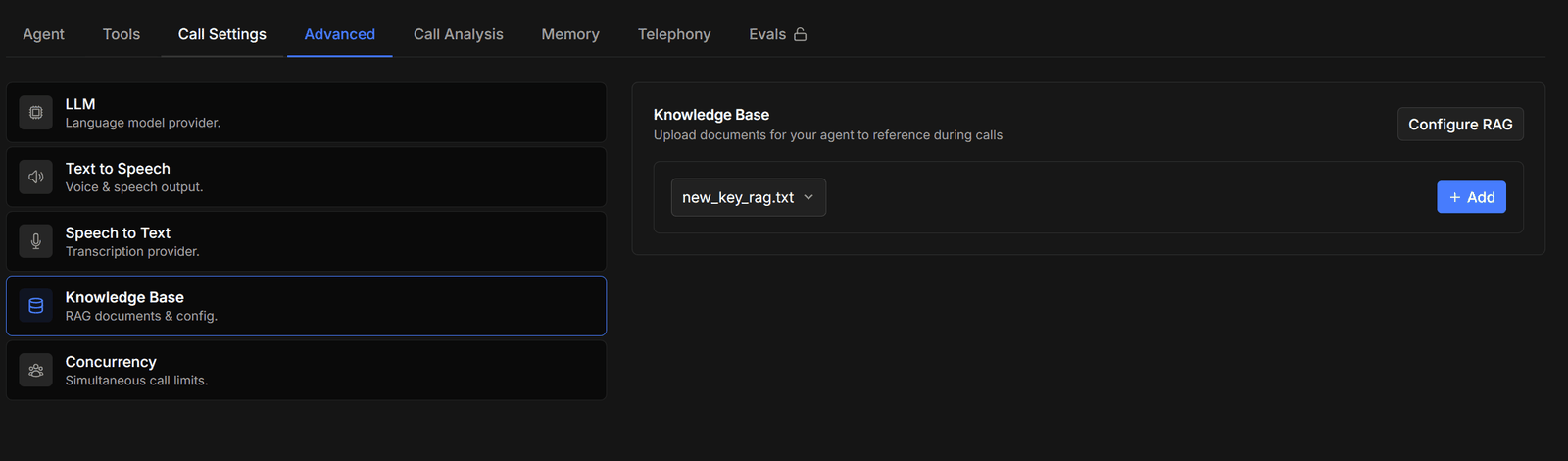
The Knowledge Base section with attached documents and the Configure RAG buttonThe Knowledge Base section with attached documents and the Configure RAG button
Attach documents from your knowledge base for the agent to search during calls. Configure RAG opens the settings:
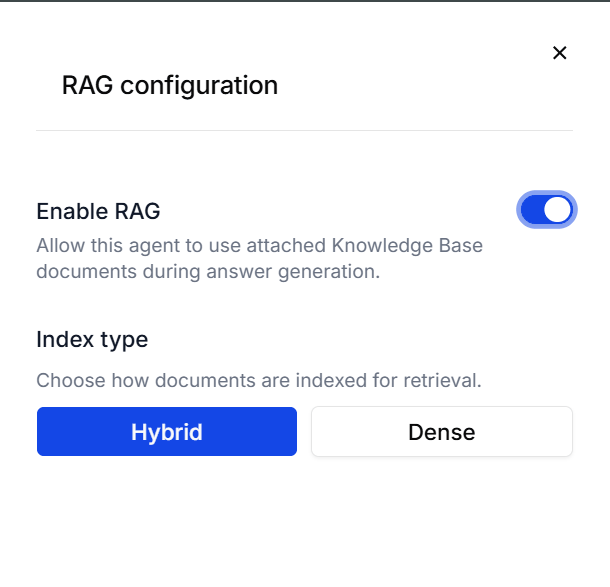
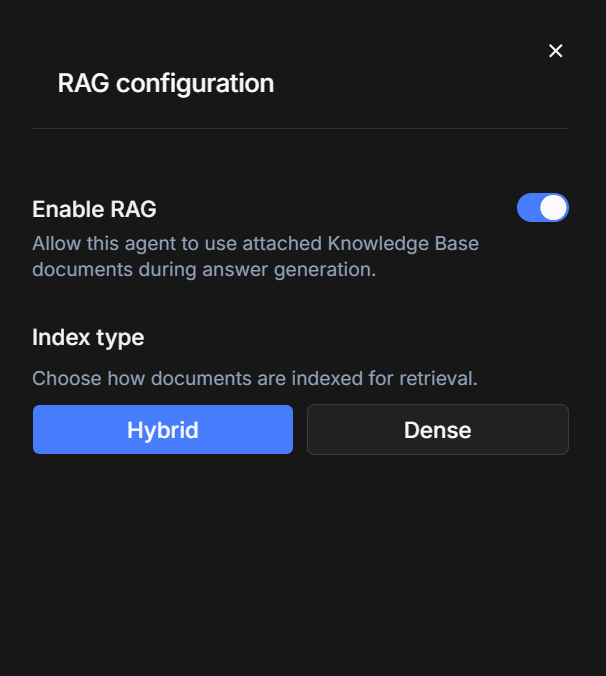
The RAG configuration panel with Enable RAG and the index type buttonsThe RAG configuration panel with Enable RAG and the index type buttons
  • Enable RAG — turn this on before attaching anything, or you’ll be told to enable the knowledge base first.
  • Index typehybrid (the default) matches on both wording and meaning; dense matches on meaning alone.
Turning Enable RAG off deletes every document attached to this agent, with no confirmation. Your knowledge base copies are untouched, but you’ll have to attach them again.
Changing the index type re-indexes every attached document, which takes a moment the first time. Switching back later is instant.How much text the agent retrieves per question — chunk limit, character limit, and how closely a passage must match — is set on the Search knowledge base tool, not here.

Concurrency
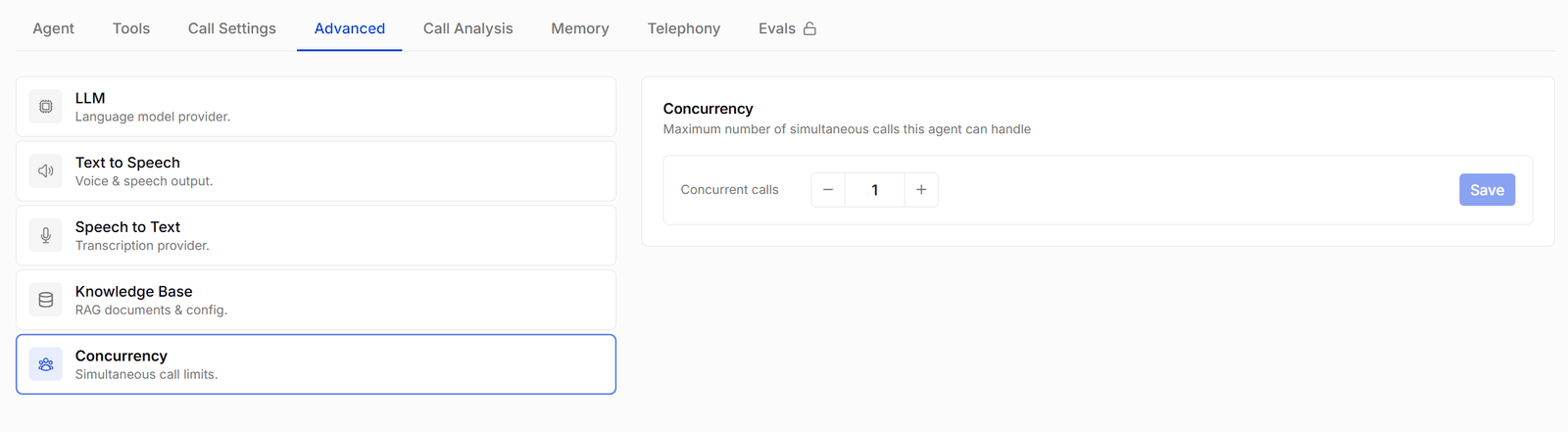
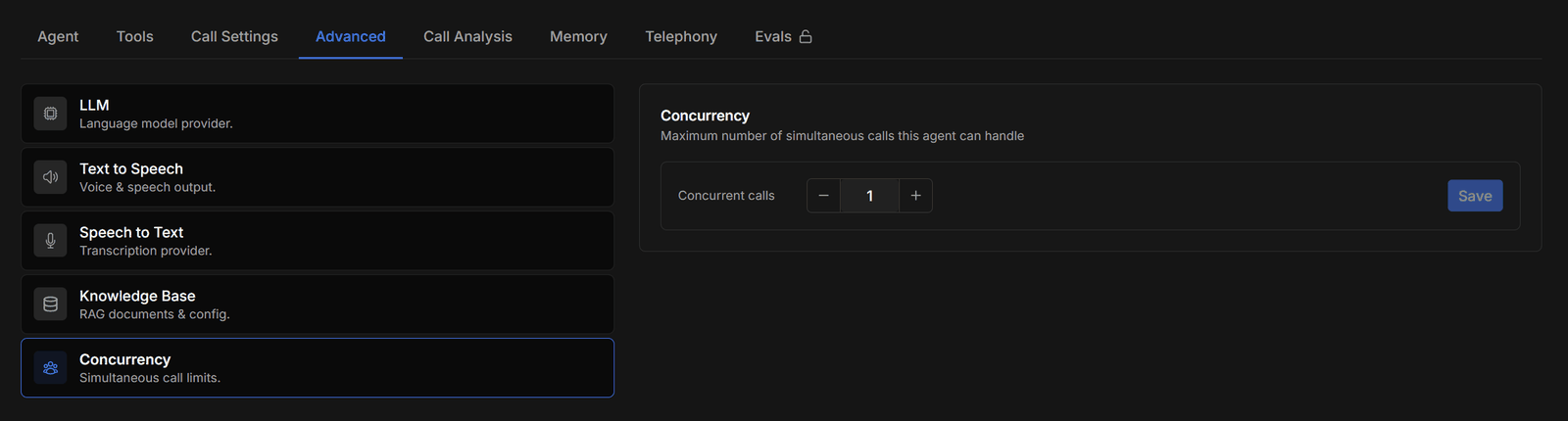
The Concurrency section with the concurrent calls stepperThe Concurrency section with the concurrent calls stepper
Concurrent calls caps how many calls this agent handles at the same time. Outbound calling respects the cap by pacing the dialling — extra calls wait for a free slot rather than failing. Your workspace has its own allowance, and the total across your active agents can’t exceed it. If it does, saving fails with Total concurrency is greater than the account concurrency, and activating an agent fails with Concurrency is greater than the account concurrency. Contact support@osvi.ai to raise the workspace allowance.
A value of 0 shows as (no calls). Set at least 1 for an agent you expect to make outbound calls. Your telephony capacity matters too: one trunk channel carries one call at a time, so the cap can’t beat the channels you have.