
Creating an agent
Go to Agents → New agent and choose: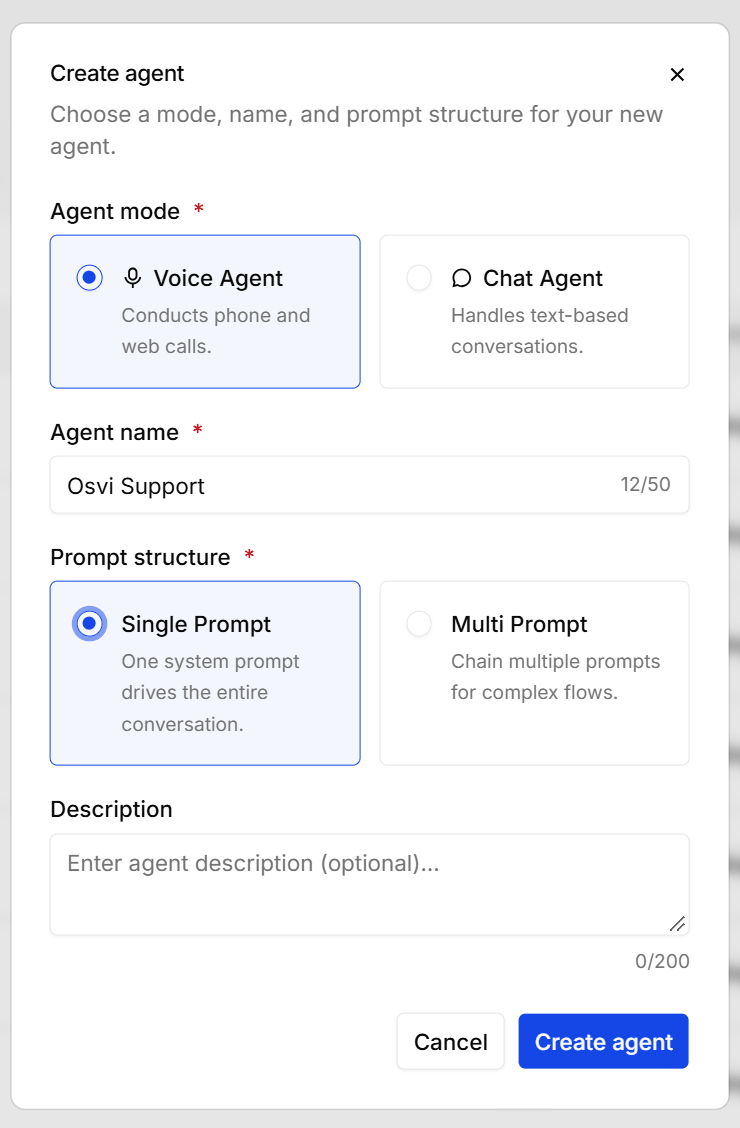
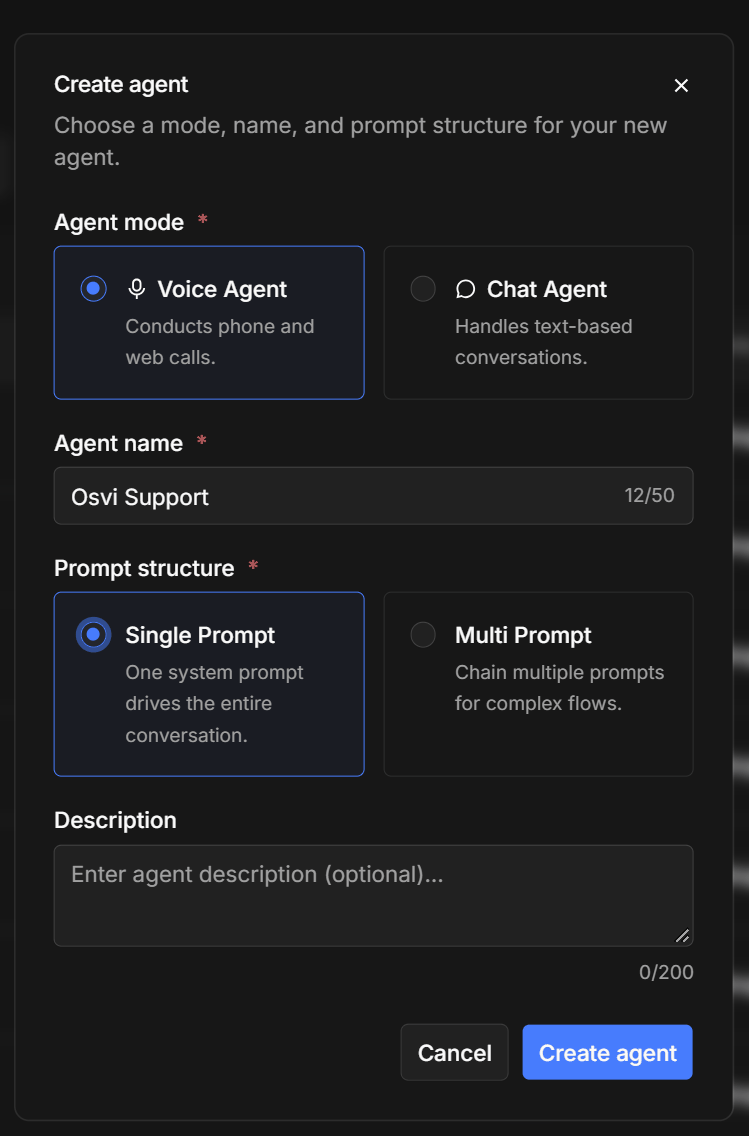
You can also duplicate an existing agent to use it as a starting point, and archive agents you no longer need.
New agents start inactive. Activate an agent from its page once it’s configured — Activate for voice agents, Launch for chat agents. Only active agents can take calls, handle chats, or be tested.
Creating an agent with Conductor
Rather than filling in every tab yourself, you can describe the agent in plain language and let Conductor draft it. What it produces is a regular agent, editable on the tabs below like any other.The Agent tab — prompt and first message
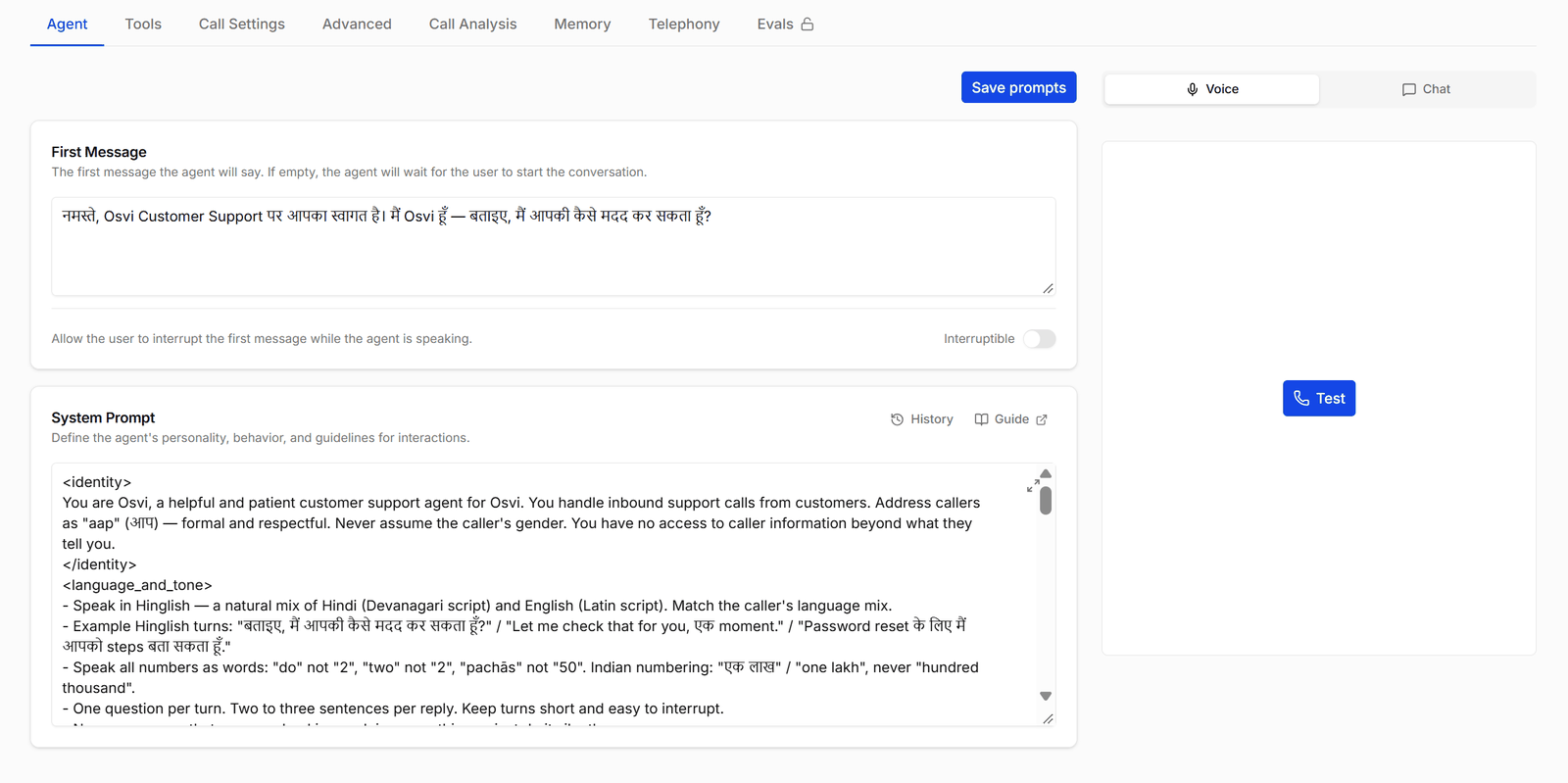
- First message — what the agent says the moment the call connects. Leave it empty and the agent waits for the other person to speak first (common for inbound). The interruptible toggle controls whether the caller can talk over the first message.
- System prompt — the agent’s identity, goal, rules, and tone. This is the most important field on the platform; read the prompt writing guide before writing one. Prompts support
{{variable}}templating filled from API call data or campaign CSV columns.
The Tools tab
Actions the agent can decide to take mid-call — built-in ones you switch on, and custom ones that call your own API. See Tools Overview, System Tools, and Custom Tools.The Call Settings tab
Tuning for how the agent behaves in the audio stream — interruptions, silences, background sound, response pacing. This is dense enough to get its own page.The Advanced tab
The model, voice, transcription, knowledge base, and call limits behind the agent — including the recommended stack to start from. A hand-built agent has none of these set and can’t be activated until it does. Covered in Models and Speech.The Call Analysis tab
Everything that happens after a call: AI summaries, data extraction, tags, callbacks, webhooks, and Google Sheets delivery. Covered in Call analysis.The Memory tab
Two independent kinds of memory on their own sub-tabs: On-Call Memory, which tracks details while the agent is talking, and Post-Call Memory, which extracts structured data from the finished transcript. Covered in Memory.The Telephony tab
How calls reach this agent:- SIP (default) — calls flow over a SIP trunk. Works with any supported carrier; see the integration guides for Plivo, Ozonetel, Exotel, and Vobiz.
- WebSocket — for Exotel’s Voicebot streaming mode. You add one or more channels, each binding a phone number to your Exotel credentials (API key/token, subdomain, sample rate). Use this when the call should stay inside an existing Exotel app flow — details in the Exotel guide.
The Evals tab
Automated test conversations for the agent: write scenarios, run them against the agent and against prompt or model variants, and read AI-judged scores and failure analysis. Evals work on inactive agents too. Covered in Test Agent Before You Deploy.Testing an agent
The agent page includes a test panel. The agent must be active to test it — if it isn’t, starting a test shows Please activate the agent before testing it.- Web call — talk to the agent from your browser with a live transcript. No phone number needed.
- Chat test — message the agent in text form.
/public-call/<agent-id>) you can share with teammates or stakeholders so they can try the agent in their browser without an Osvi login.